
This integration is for WorldPay eCommece - SMB(Small and Medium Busines).
1. Activate WorldPay as payment gateway
-
Once you have activated WorldPay plugin, you'll need to validate the licence in HBook > Licence.

-
Set WorldPay as an active payment gateway in HBook > Payment > Activate payment gateways.
2. In WorldPay, obtain the information required by HBook
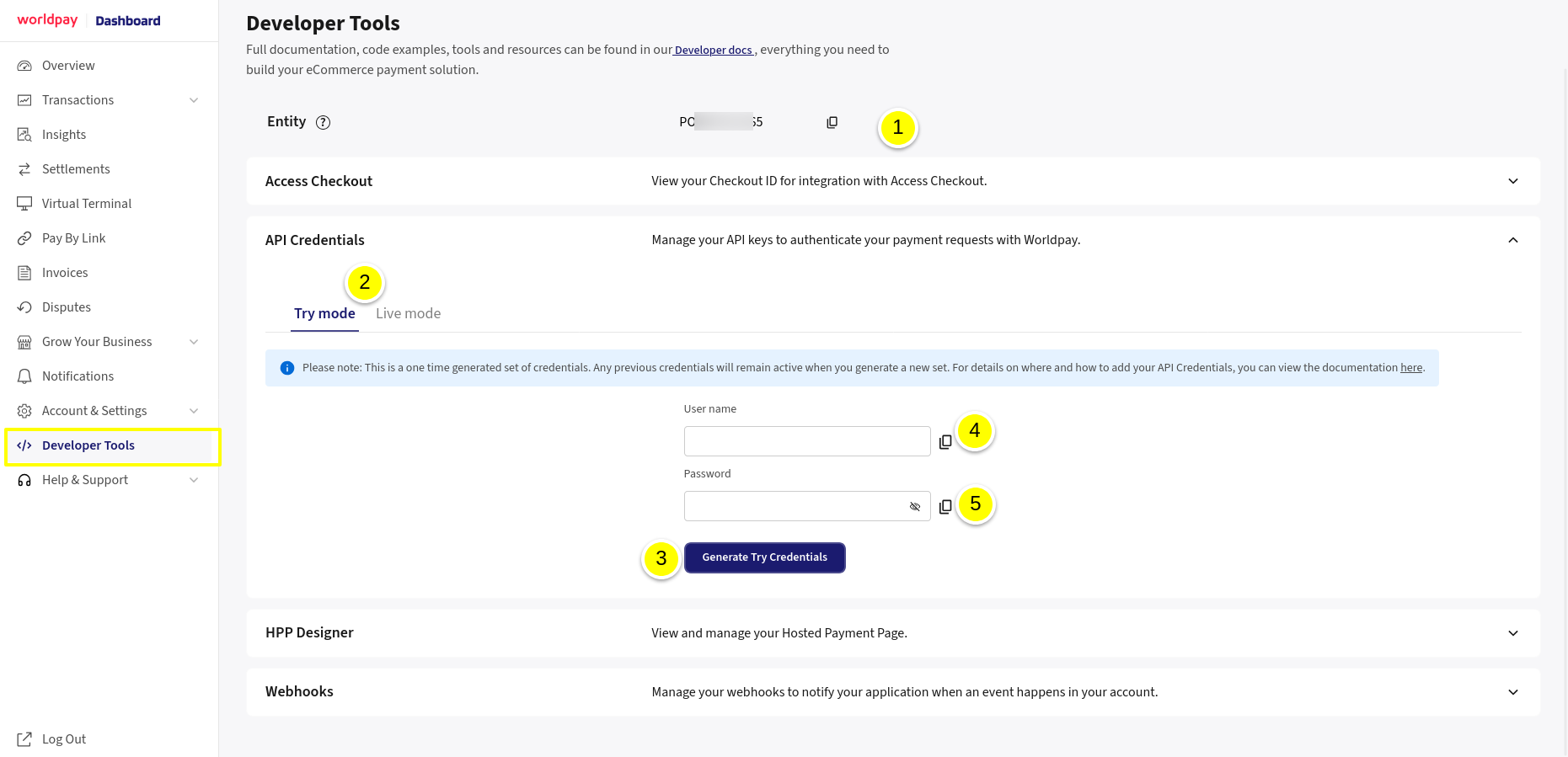
You will find all the information required by HBook in your WorldPay dashboard. Navigate to the menu Developer Tools > API credentials.
-
Here is the Merchant Entity. It is the same for both Test and Live environment.
-
Your API Username and Password will be specific to each environment. Here you can select the environment you wish to generate the credentials for.
-
“Try” mode is for the Test environment: you will use the Test cards (no real payment is processed).
-
“Live” mode is for real transactions.
-
-
Click on Generate Credentials. Please note that you will see the credentials only once. You will copy them to add them into HBook directly.
-
Here is the WorlPay API Username.
-
Here is the WorldPay API Password.
3. In HBook, add WorldPay credentials
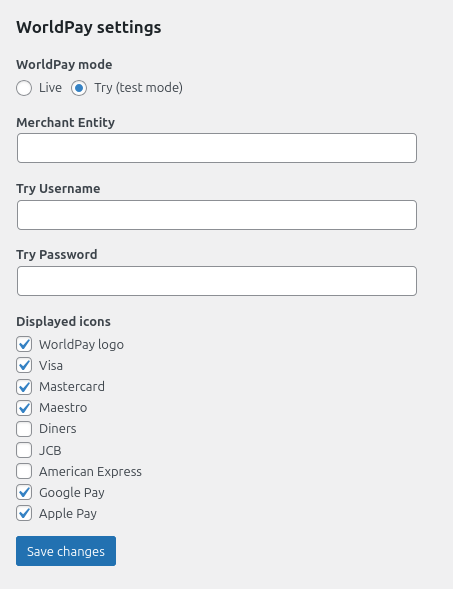
Enter your WorldPay information for the "Test" or "Live" environment in HBook > Payment > WorldPay settings. You will add the “Merchant Entity”, “Username” and “Password” retrieved in the previous step.
3. In WorldPay, create the webhook
Webhook have to be configured for each environment, “Try” and “Live”. You can indicate the same URL (if you do not use a different dev/staging site).
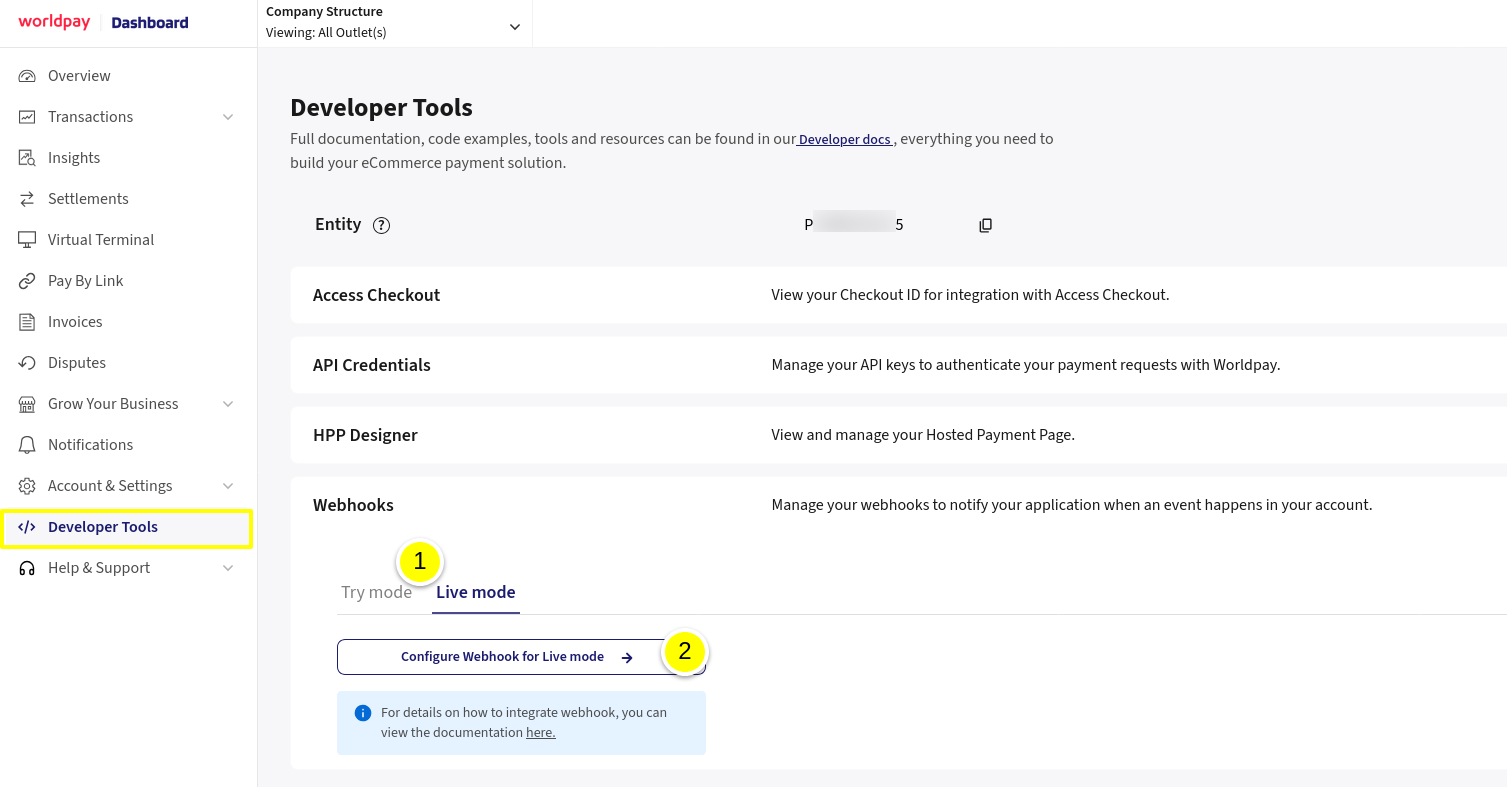
In Developer Tools > Webhook, you will create the webhook for HBook to receive the result of the transaction.
-
Select the environment for which you wish to configure the webhook.
-
Click on Configure Webhook.
-
A pop-up will open, and you will add the webhook URL. The URL structure is important: you add "/confirmation-worldpay" to the URL of your WordPress site. This will be "www.mywebsite.com/confirmation-worldpay", replacing "www.mywebsite.com" with the URL of your WordPress site.
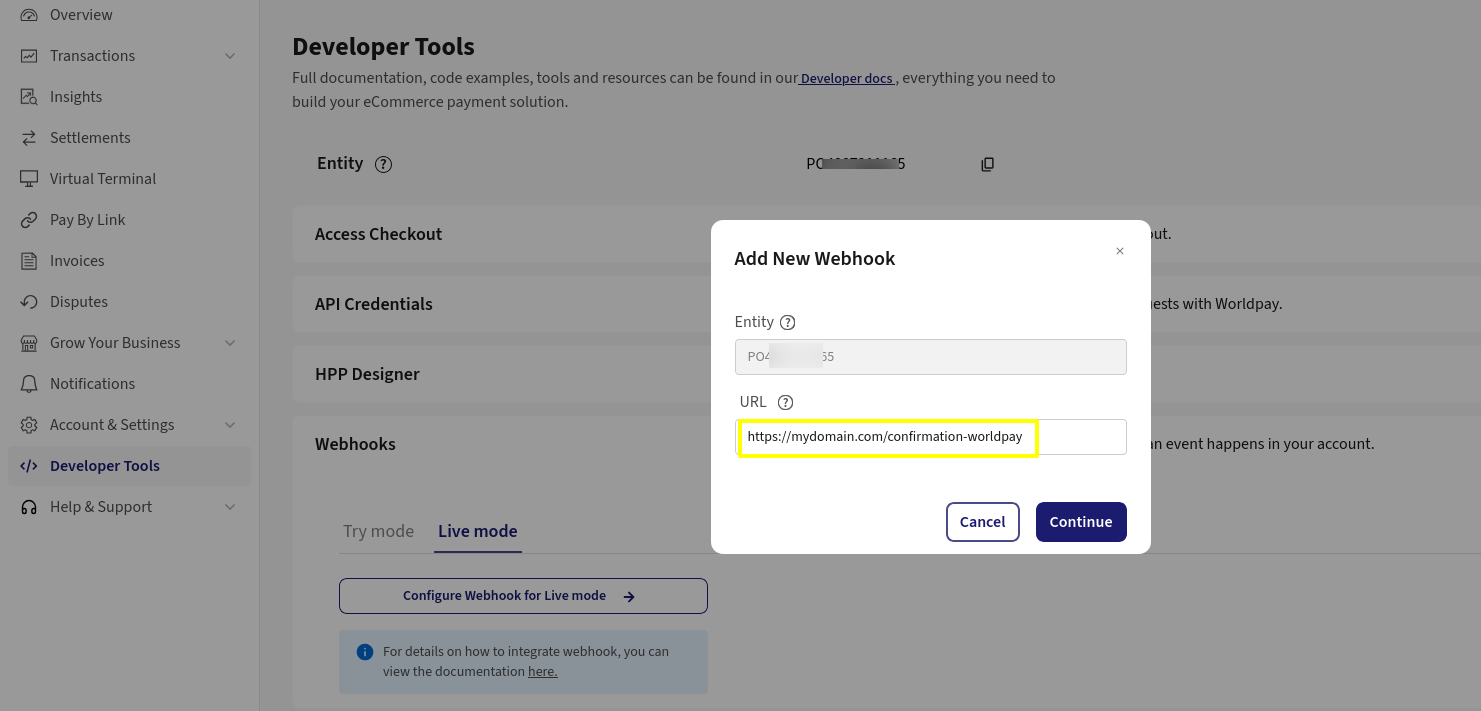
If you have Test and Live sites, make sure you enter the webhook corresponding to the right environment each time.
Where can I find test cards?
You can find information on payment tests in the WorldPay documentation: Testing
How do I customize WorldPay payment page?
You will find the customization options directly in the WorldPay dashboard, under Developer Tools > HPP Designer.
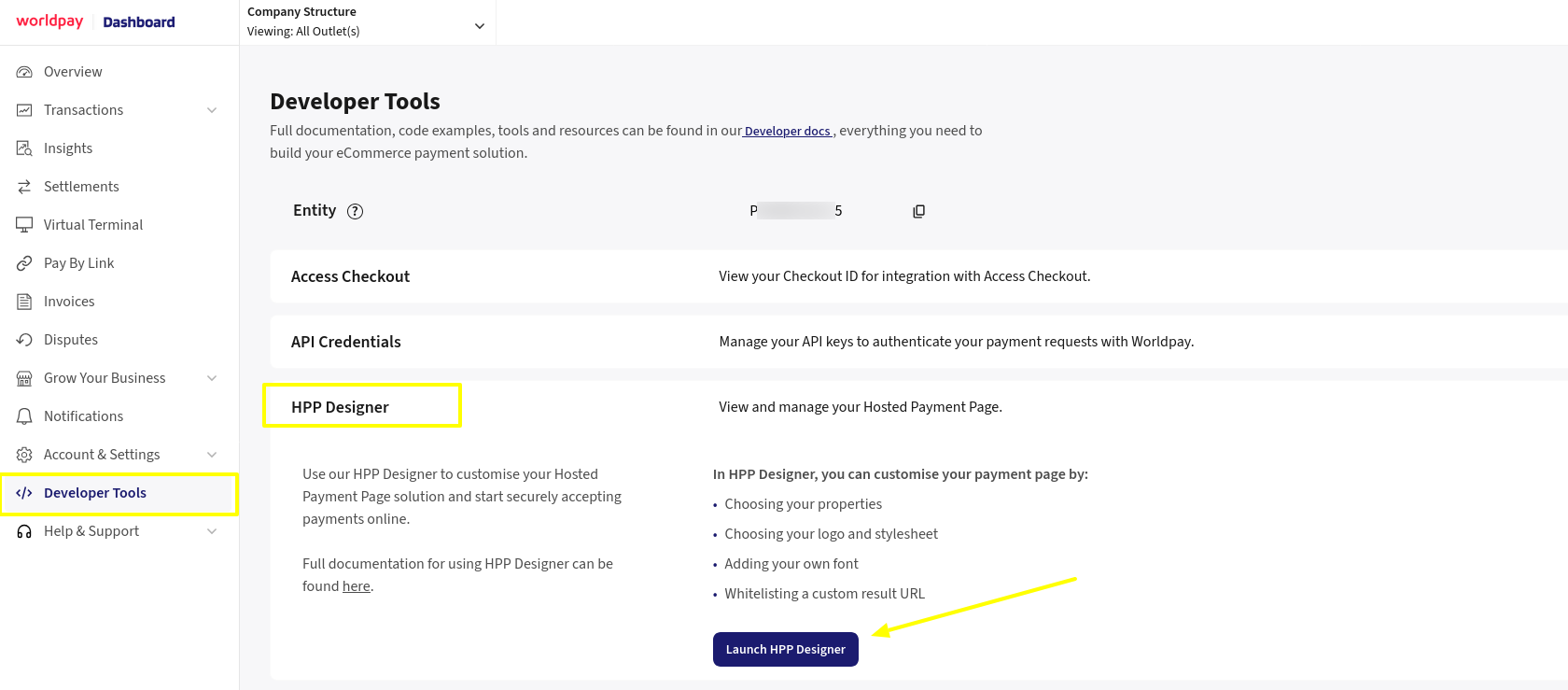
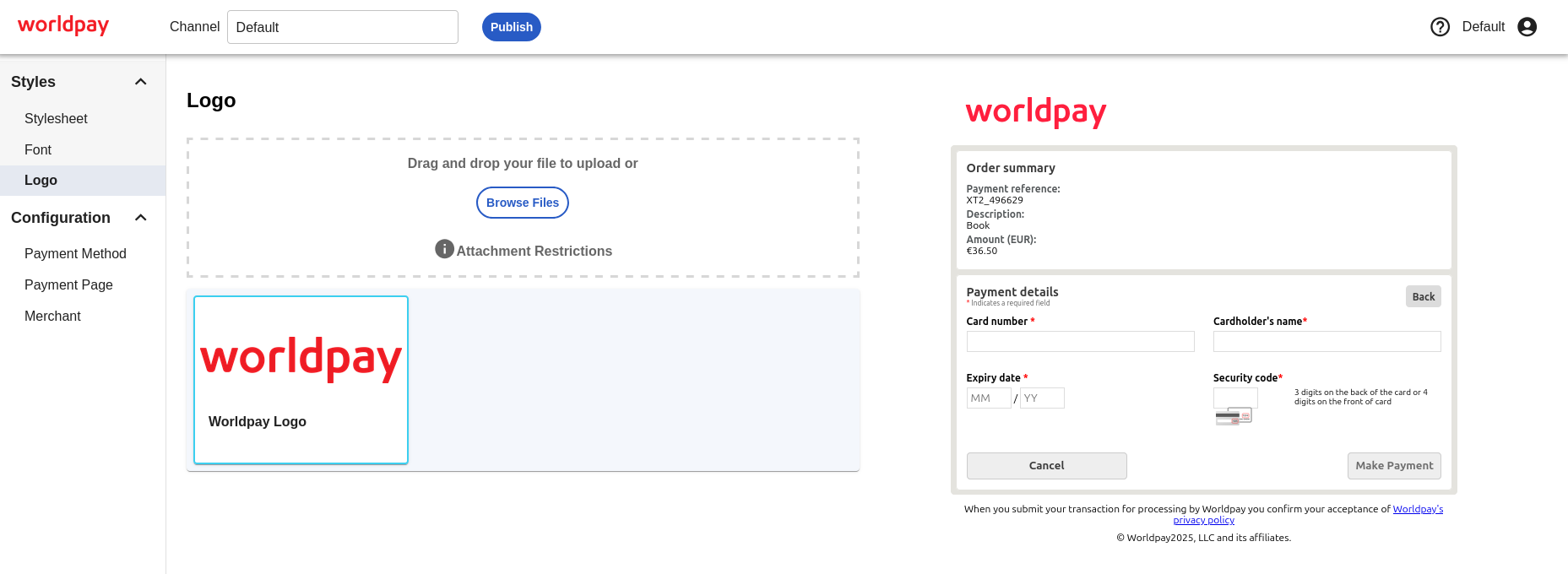
When you click on Launch HPP Designer, it will open a tab where you can edit the payment page. You can change the fonts, add logos, add a stylesheet, select the fields to be displayed, etc.
How to specify the payment methods accepted?
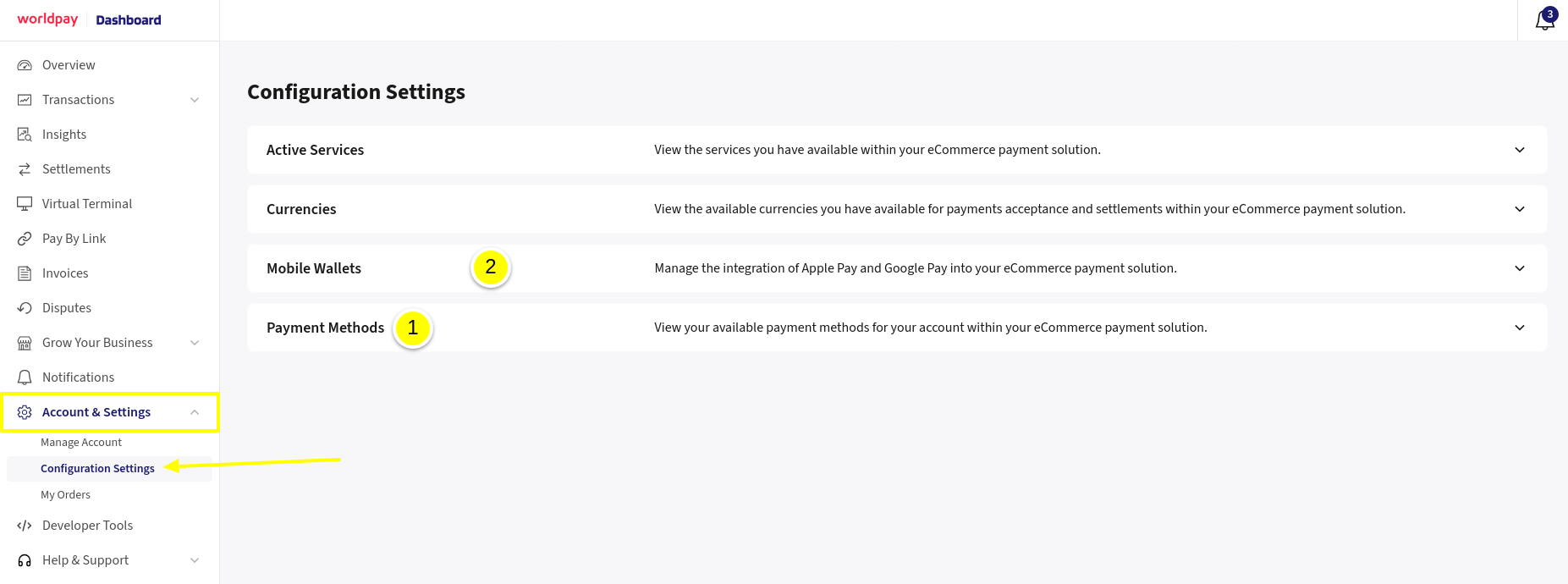
You can activate/deactivate payment methods directly in your WorldPay dashboard in Account & Settings > Configuration settings.
-
You will select the available payment methods in Payment Methods.
-
Here you can configure Google Pay and Apple Pay wallets.