
1. Activate Cawl as payment gateway
-
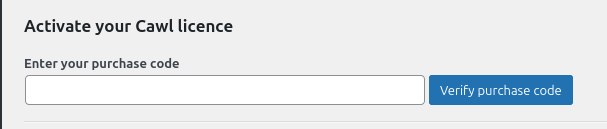
Once you have activated Cawl plugin, you'll need to validate the licence in HBook > Licence.
-
Set Cawl as an active payment gateway in HBook > Payment > Activate payment gateways.
2. In Cawl, obtain the information required by HBook
You will find all the information required by HBook in the menu Développeur of Cawl.
Please note that API key creation and webhook configuration must be performed for both Test and Live environments.
Merchant ID and adding the API key
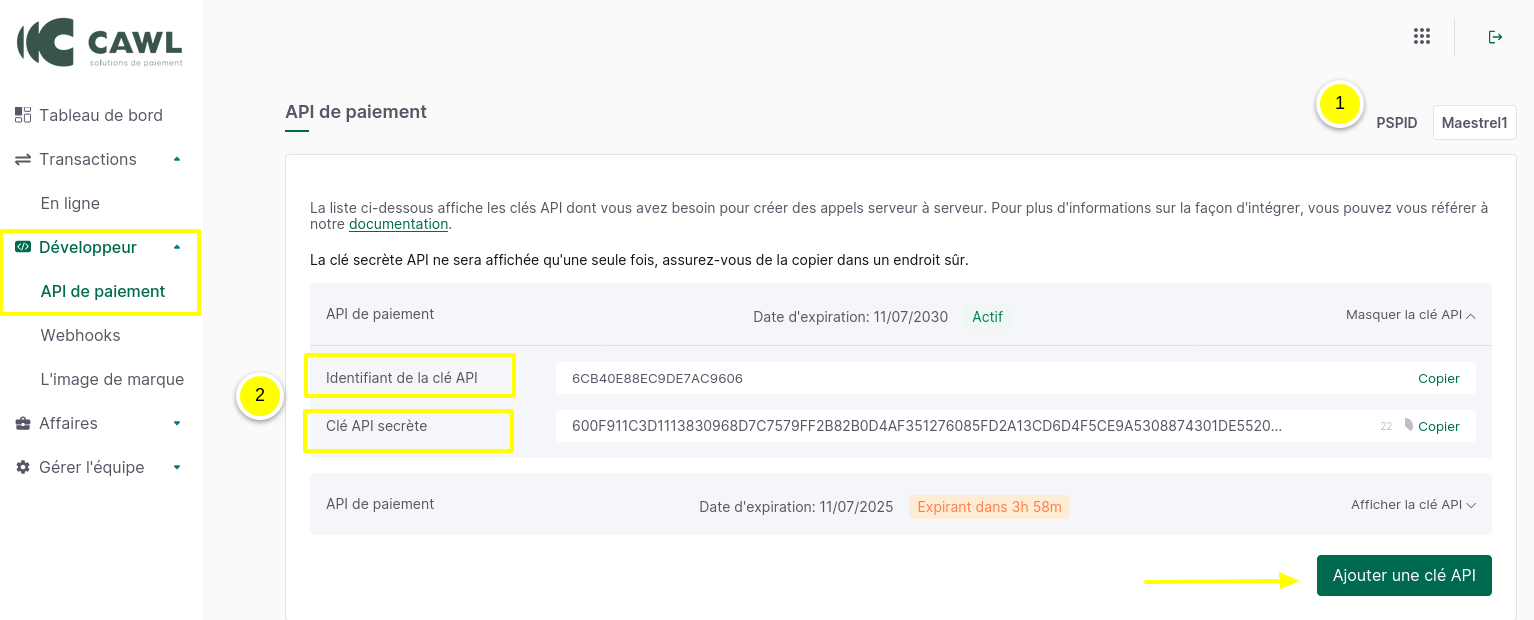
ID Merchant
-
It's your PSPID. You'll find this Merchant ID in the top right-hand corner.
Payment API key
-
In Développeur > API de Paiement, you can generate a key for the payment API. You'll need the “Identifiant de la clé API” and the “Clé API secrète”.
Webhook
In Développeur > Webhook, you will generate a “clé de webhook” and set up the “URL du webhook”.
Webhook key
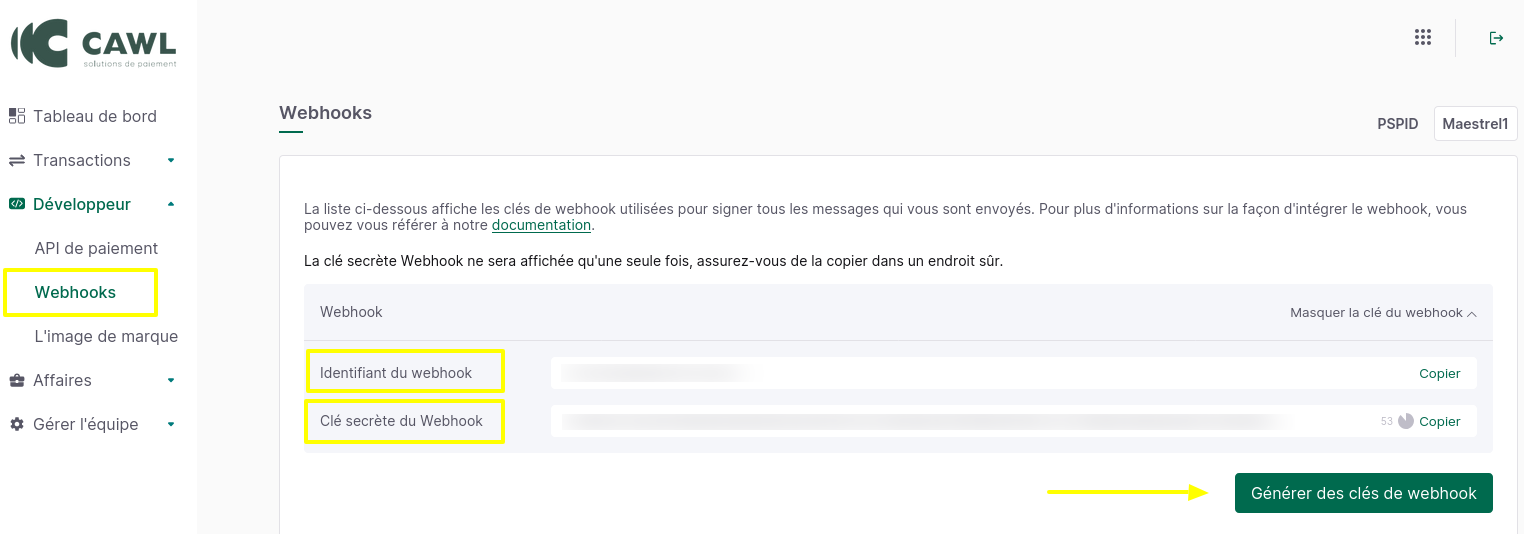
You'll need the “identifiant du webhook” and the “Clé secrète du webhook”.
Add Webhook URL
Enter the webhook URL for the server-to-server callback once payment has been finalized on Cawl. Click on "Ajouter un point de terminaison de webhook" and insert the URL.
The URL structure is important: you add "/confirmation-cawl" to the URL of your WordPress site. This will be "www.domain.com/confirmation-cawl", replacing "www.domain.com" with the URL of your WordPress site.
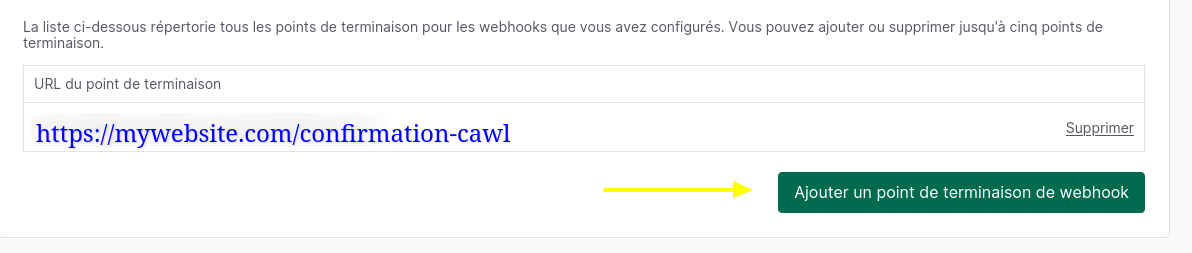
If you have Test and Live sites, make sure you enter the webhook corresponding to the right environment each time.
3. In HBook, add Cawl credentials
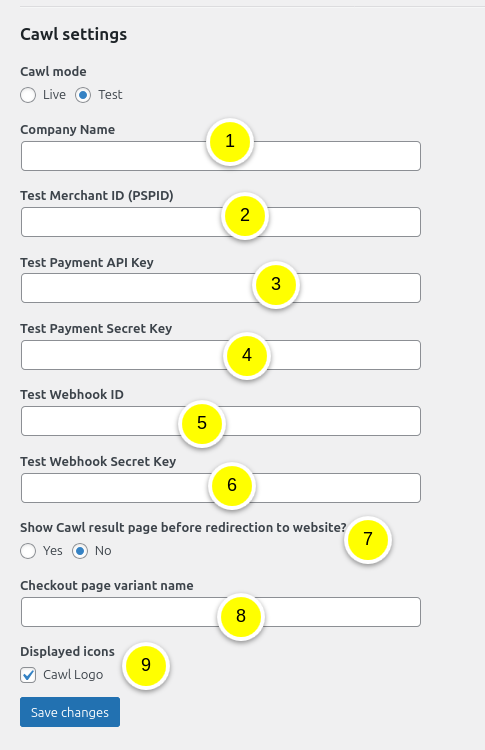
Enter your Cawl information for the "Test" or "Live" environment in HBook > Payment > Cawl settings. Some parameters are different in the Test and Live environments.
-
The Company Name is displayed on the Cawl payment page.
-
The merchant ID is your PSIPD.
-
Add your Payment API key (identifiant de clé API Paiement).
-
Add your Payment secret key (clé secrète pour l'API Paiement).
-
Add your Webhook ID (identifiant de votre clé Webhook).
-
Add your Webhook secret key (clé secrète pour le Webhook).
-
Indicate whether you'd like Cawl's Transaction Result page to be displayed, or whether you'd like to redirect directly to your website.
-
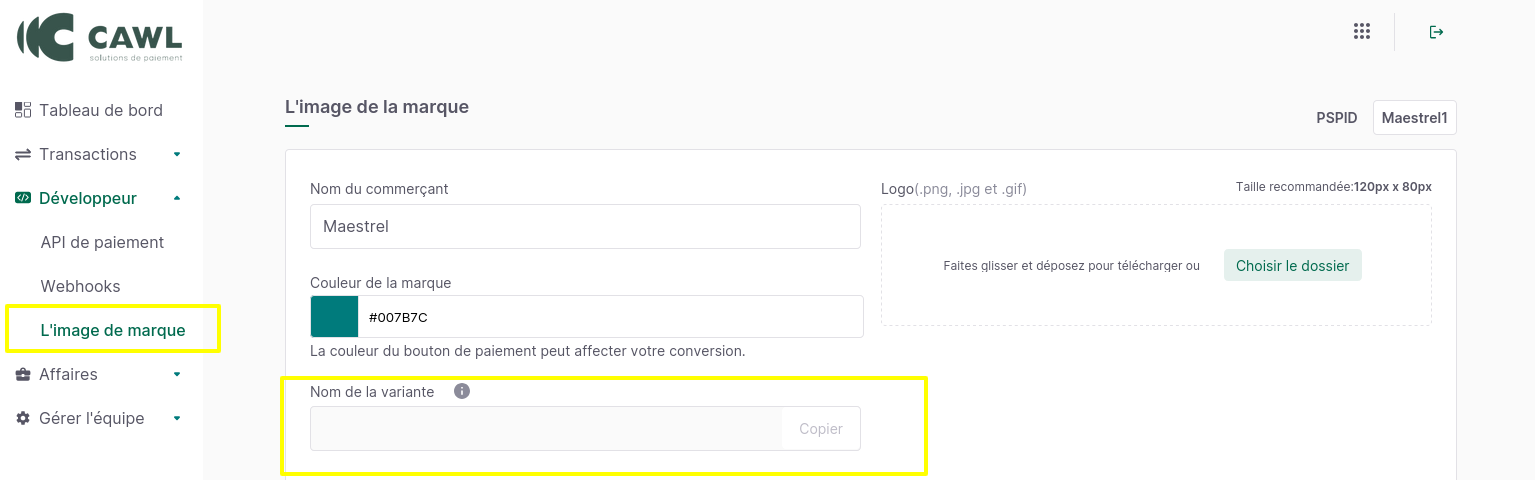
In Développeurs > Image de la marque, you can customize the Cawl payment page, and save variants of this page. If you wish to use a specific variant, enter the name of the variant to be used here.
-
Indicate whether you wish to display the Cawl logo.
Where can I find test cards?
You can find information on payment tests in the Cawl documentation, in the “Credit cards” tab: Payment info Test
How do I customize Cawl payment page?
You will find the customization options directly in the Cawl dashboard, under Développeur > Image de la marque. If you register a variant, you can specify the name of the variant to be used, in HBook > Payment > Cawl settings.
How to specify which payment methods I accept?
You can activate/deactivate payment methods directly in your Cawl dashboard in Affaires > Méthodes de paiement.