1. Activate PayU as payment gateway
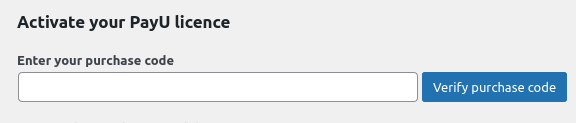
Once you have activated PayU plugin, you need to validate the licence in HBook > Licence.
-
Set PayU as active payment gateways in HBook > Payment > Active payment gateways.
2. In HBook, add PayU credentials
-
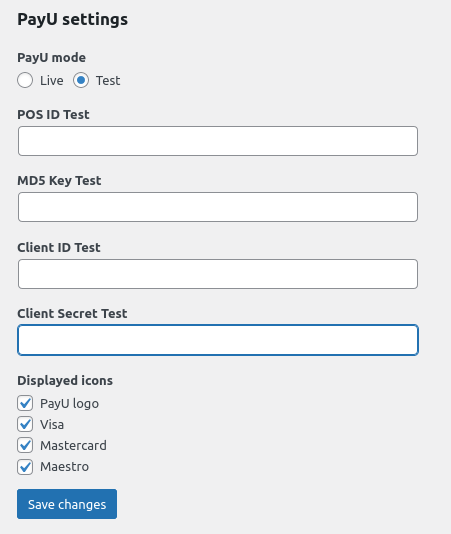
You will need to add the POS ID, MD5 Key, Client ID and Client Secret, which are communicated by PayU, in HBook > Payment > PayU settings.
How to create a Sandbox PayU.com account?
You can create a Sandbox Account from here.
Which Test cards to use?
You can find the test card details in this section of PayU documentation.
Where to find my POS ID, MD5 Key, Client ID and Client Secret?
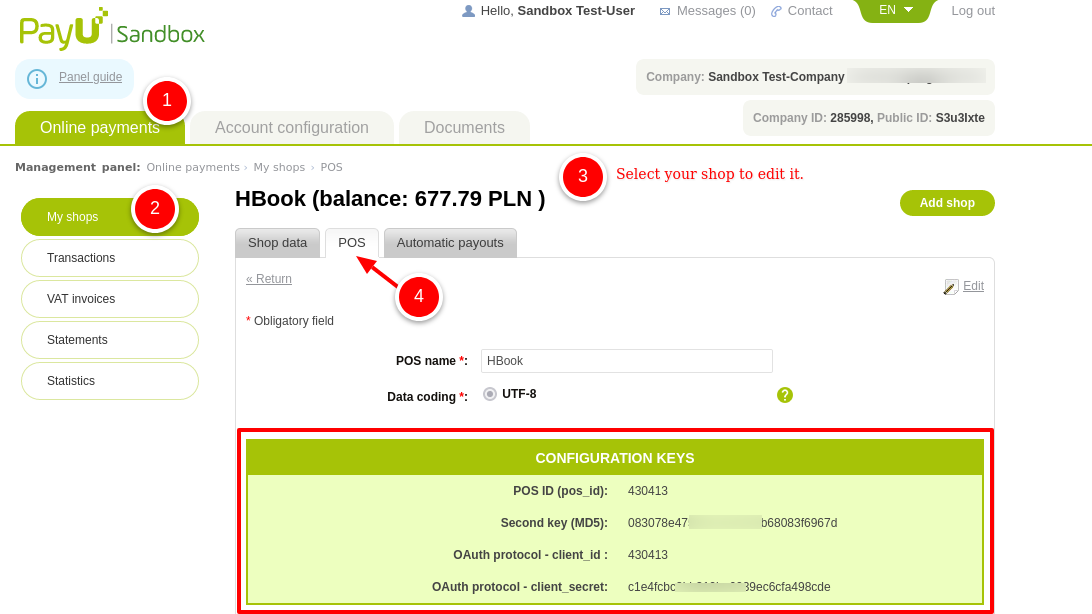
You can find these credentials in the POS tab, once you edit your Shop in Online payments > My shops.