
1. Activate Nexi Nets as payment gateway
-
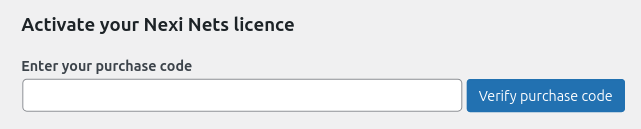
Once you have activated Nexi Nets for HBook plugin, you need to validate the licence in HBook > Licence.
-
Set Nexi Nets as active payment gateways in HBook > Payment > Active payment gateways
2. In HBook, add Nexi Nets settings
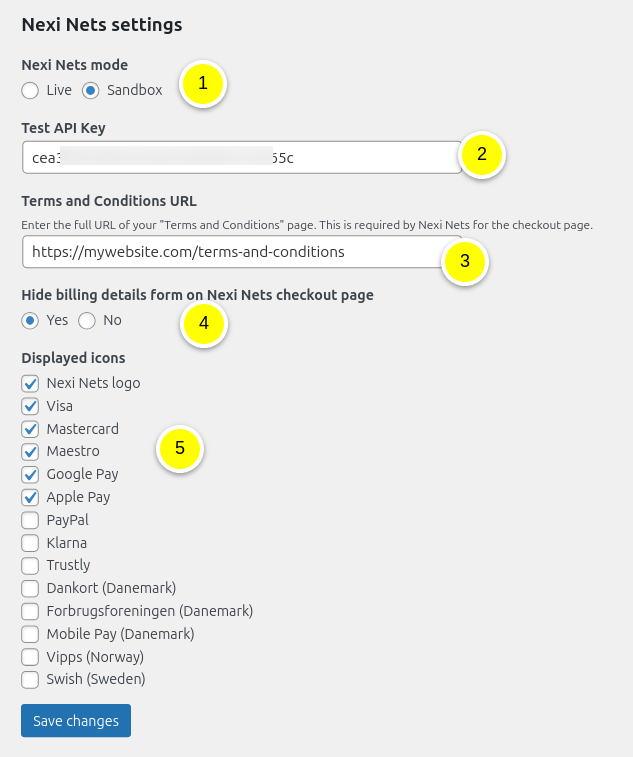
Enter your Nexi Nets information in HBook > Payment > Nexi Nets settings.
-
Set the environment to test (fake payments) or live (real payments)
-
Add your APi Key for the chosen environment.
-
Indicate the URL of your “Terms and Conditions” page. This is required by Nexi Nets.
-
Choose if you wish to hide or display the Nexi Nets billing details form on the hosted checkout page.
-
If set to “Yes”, then only the payment form is visible on Nexi Nets hosted checkout. We pass the HBook customer data to Nexi Nets and you will find in Nexi Nets dashboard the same Customer details as in HBook.
-
If set to “No”, the billing and payment form are visible on Nexi Nets hosted checkout. We pass the Customer Country (as it is required for some payment methods) but we do not pass any other customer information to Nexi Nets. The Nexi Customer data will be the one filled in by the customer with Nexi Nets billing form, on the hosted checkout page.
-
How to create a Nexi Nets account?
-
You can create a free account from here. It is handy to test before signing up.
-
The dashboard URL is: https://portal.dibspayment.eu/dashboard.
Where can I find the API key for Test and Live environment?
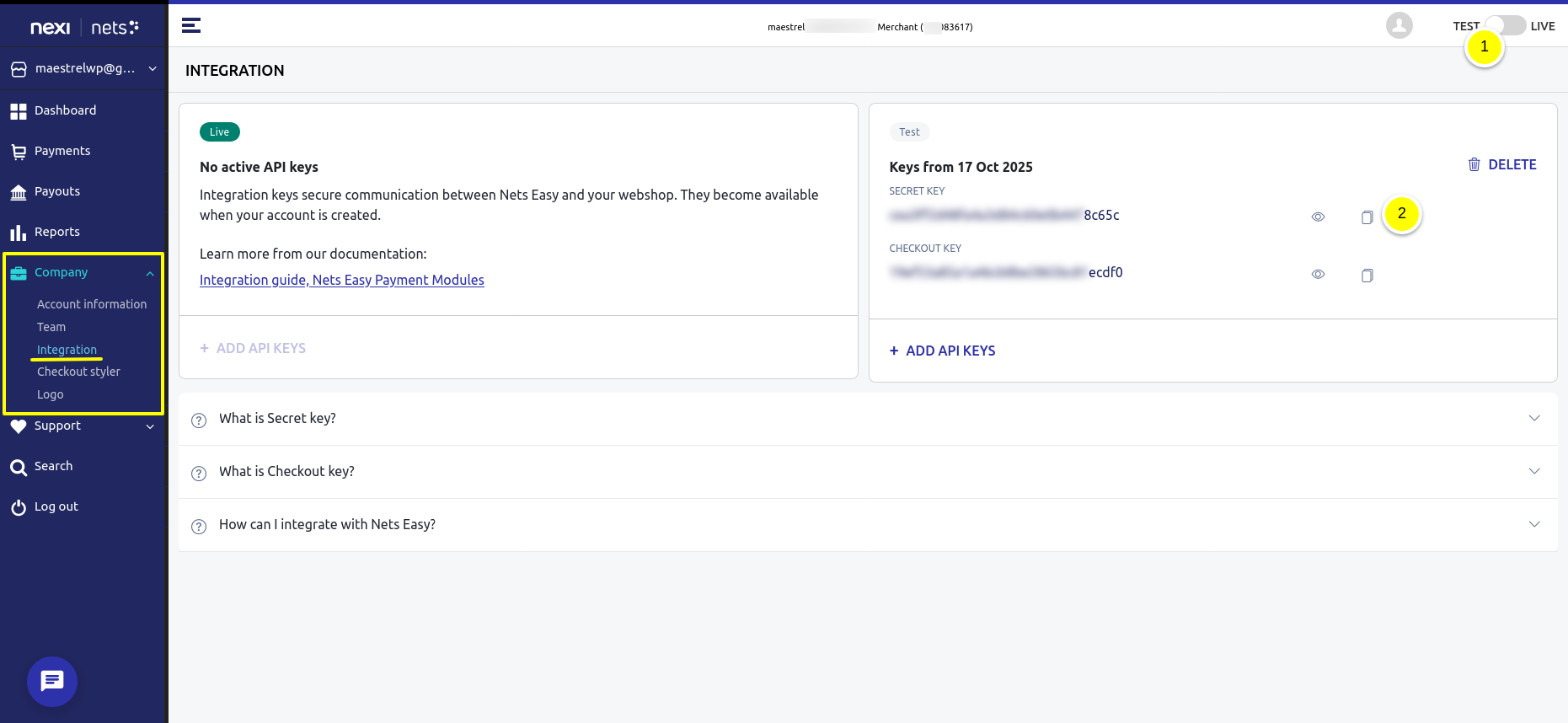
You will find them in your Nexi Nets dashboard, when navigating to Company > Integration.
-
Here you can switch between Test and Live environments.
-
Here you will find the Secret key that you need to copy. You will not need the Checkout Key, so you can ignore it.
Nexi Nets payment methods
Nexi Nets automatically display the payment methods available for the transaction. Which of the payment methods appear on the Nexi hosted checkout for your customers to choose from, might depend on your country and currency settings.
Some payment methods are only available for specific countries. List of Nexi Nets Payment methods.
Where can I find test cards?
You can find information on payment tests in the Nexi Nets documentation: Test cards
It is not possible to run tests in local environment. Even “Test” environment for Nexi Nets for HBook has to be done on an online pre-production site. This is due to Nexi Nets requirements for notification URL that can not be a local URL.
How do I customize Nexi Nets checkout page?
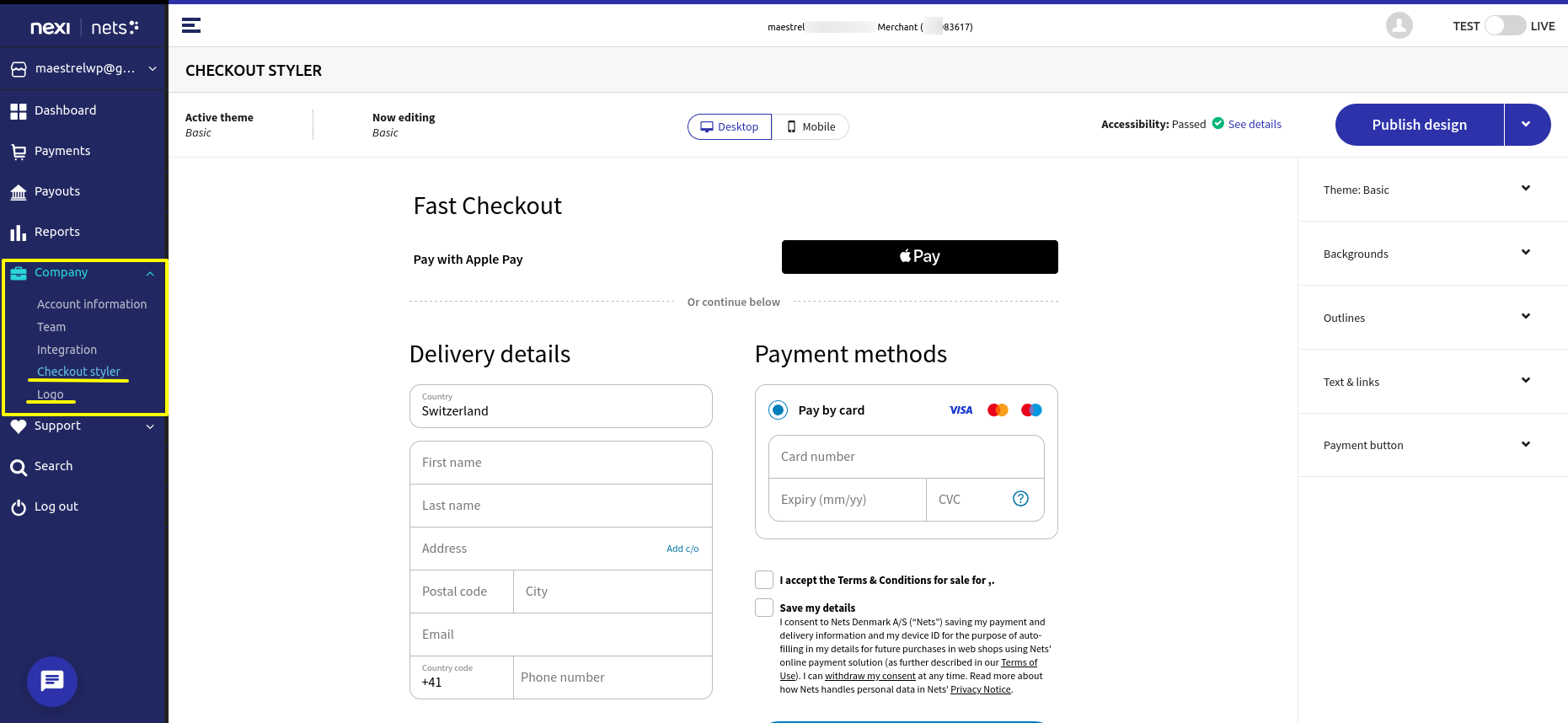
From Nexi Nets dashboard, navigating to Company > Checkout styler and Company > Logo, you can customize the checkout page and add the logo of your business.
IP to whitelist to receive the webhook notifications
Nexi Nets send a notification that is used by HBook to retrieve the status of the payment. You may need to check with your hosting to allow the following public IP ranges that are used for sending webhooks:
-
Production: 20.103.218.104/30
-
Sandbox: 20.31.57.60/30