
You will use the rates table shortcode or bloc to display a pricing table. There are various options for the organization of the rates as well as the type of rates to display.
Shortcode [hb_rates]
Use the [hb_rates] shortcode to display a rates table.
Default behavior:
-
Within an accommodation type page, be it an HBook Accommodation Type or on the page set as Display option, the rates table displayed is by default the one for this accommodation type.
Parameters:
-
accom_id: add the accom_id parameter if you want to display the calendar outside an Accommodation page.
For example: [hb_rates accom_id="5"]
You will find the accommodation ID in the accommodation type post right under the title.
-
type: you can choose to display only one type of rate with the type parameter.
Default : normal.
There are 3 possible values:-
normal : it corresponds to the Accommodation rate (for the normal occupancy) as set in HBook > Rates.
-
adult : it corresponds to the Price per adult above the normal occupancy.
-
child : it corresponds to the Price per adult above the normal occupancy.
-
For example, the following shortcode [hb_rates type="child"] will only display the rate per extra child.
-
seasons: use this parameter to display a rates table for one or several seasons only.
For example, the following shortcode [hb_rates seasons="low,middle"] will display the rates only for low and middle seasons. -
rule: use this parameter to display a rates table for one “Special rate” booking rule only.
-
days: use this parameter to display a rates table for a set of days only.
For example [hb_rates days="4,5"] will display the rate for the Friday night and the Saturday night only. -
show_global_price: Default: no. Set this parameter to yes to show global prices instead of a price per night.
For example, if you have a weekly rate, you might prefer to display the rate for 7 nights than the nightly rate. -
custom_text_after_amount: thanks to this parameter, you can display a custom text after the price.
-
show_season_name: Default : yes. Set this parameter to no if you do not wish to display a column that will show the name of the season. You can customize and translate the name of your seasons (if you have a multi-language site) in HBook > Text > Rate table.
-
chronological: Default : no. Set this parameter to yes to order the seasons in chronological order in the rate table.
Examples:
[hb_rates show_global_price="yes" custom_text_after_amount="per week"] will display a global price with “per week” appended after the rate amount.
[hb_rates season="high" rule="midweek"] will display a table rate for “High” season and “Midweek” special rate rule only.
[hb_rates show_season_name="no" chronological="yes"] will display a table rate for all my seasons for the accommodation base rate. The table will order the season by chronological order, and it will not show the name of the season.
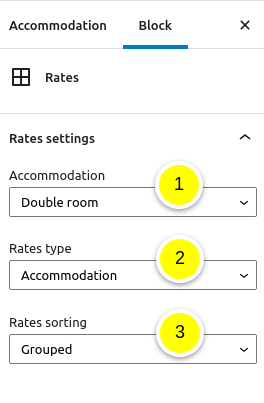
Rates table block - Gutenberg
-
Select for which accommodation type the availability calendar is.
-
Select for which rate type you wish to display : the accommodation rate, the extra adults or extra children rates.
-
Select how the rates should be sorted: chronologically or grouped by seasons. This setting is important only if you have seasons that have different periods.