
Please refer to this GreenGo article to find out where to locate the settings for importing/exporting the calendar: Comment synchroniser mon calendrier GreenGo avec une autre plateforme ?
Step-by-step guide to syncing with Greengo in both directions:
-
In HBook > Sync with iCal, click "Get URL" and copy the URL given by HBook for that accommodation.
-
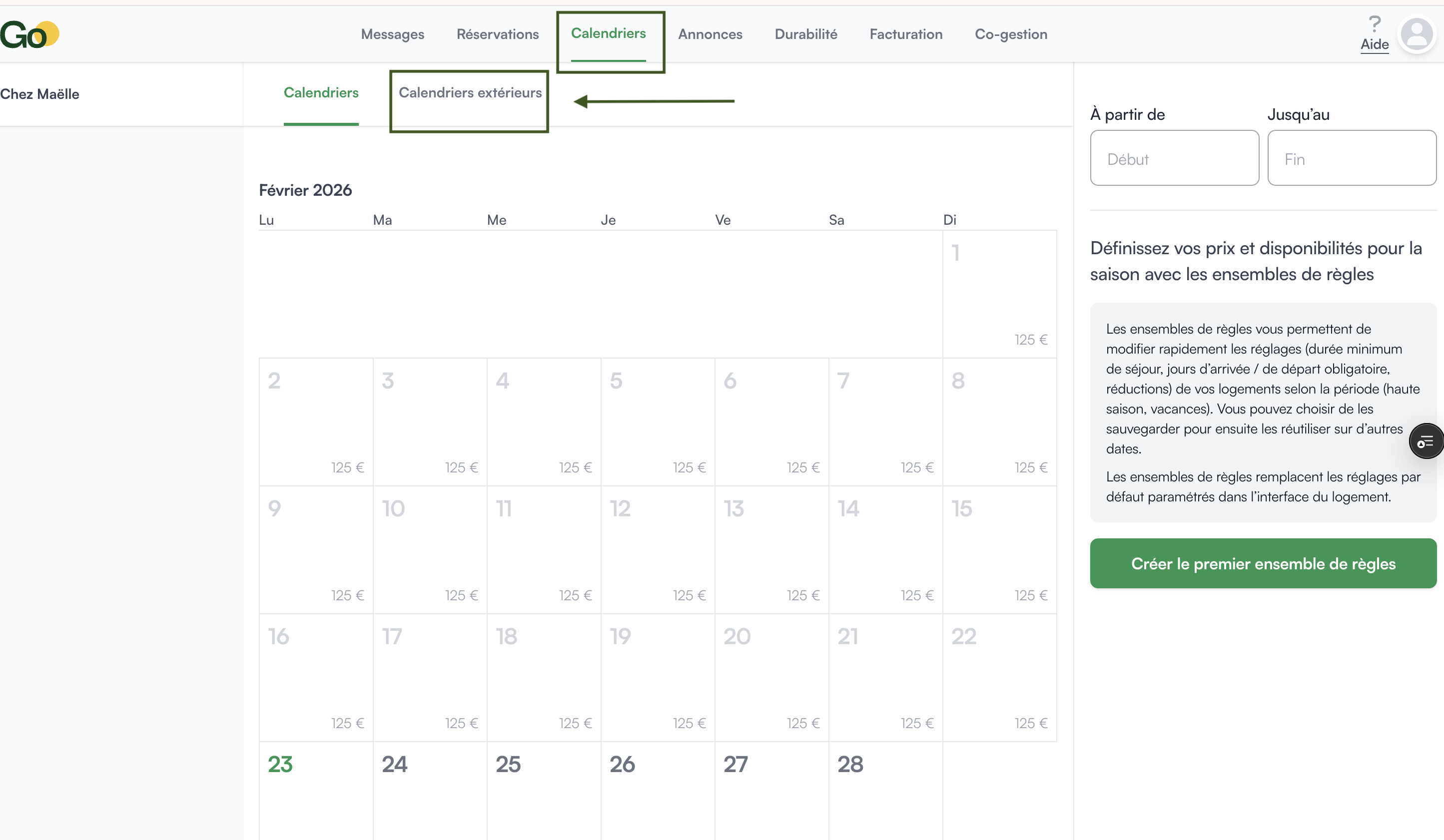
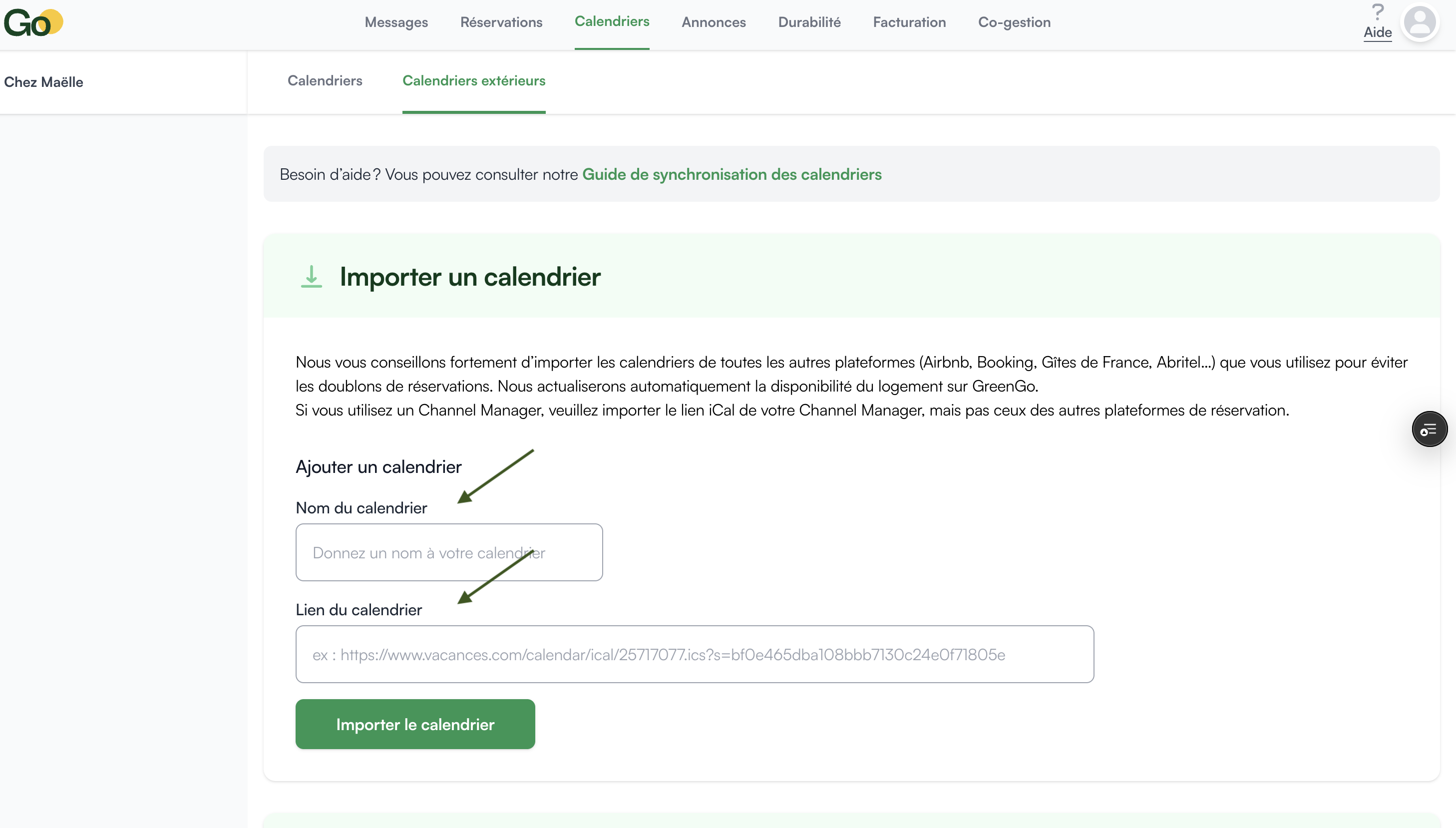
Once you've logged in to Greengo > Calendriers > Calendriers exterieurs, in the section Importer un calendrier, paste the HBook URL and enter a calendar name. Click “Importer le calendrier”.
-
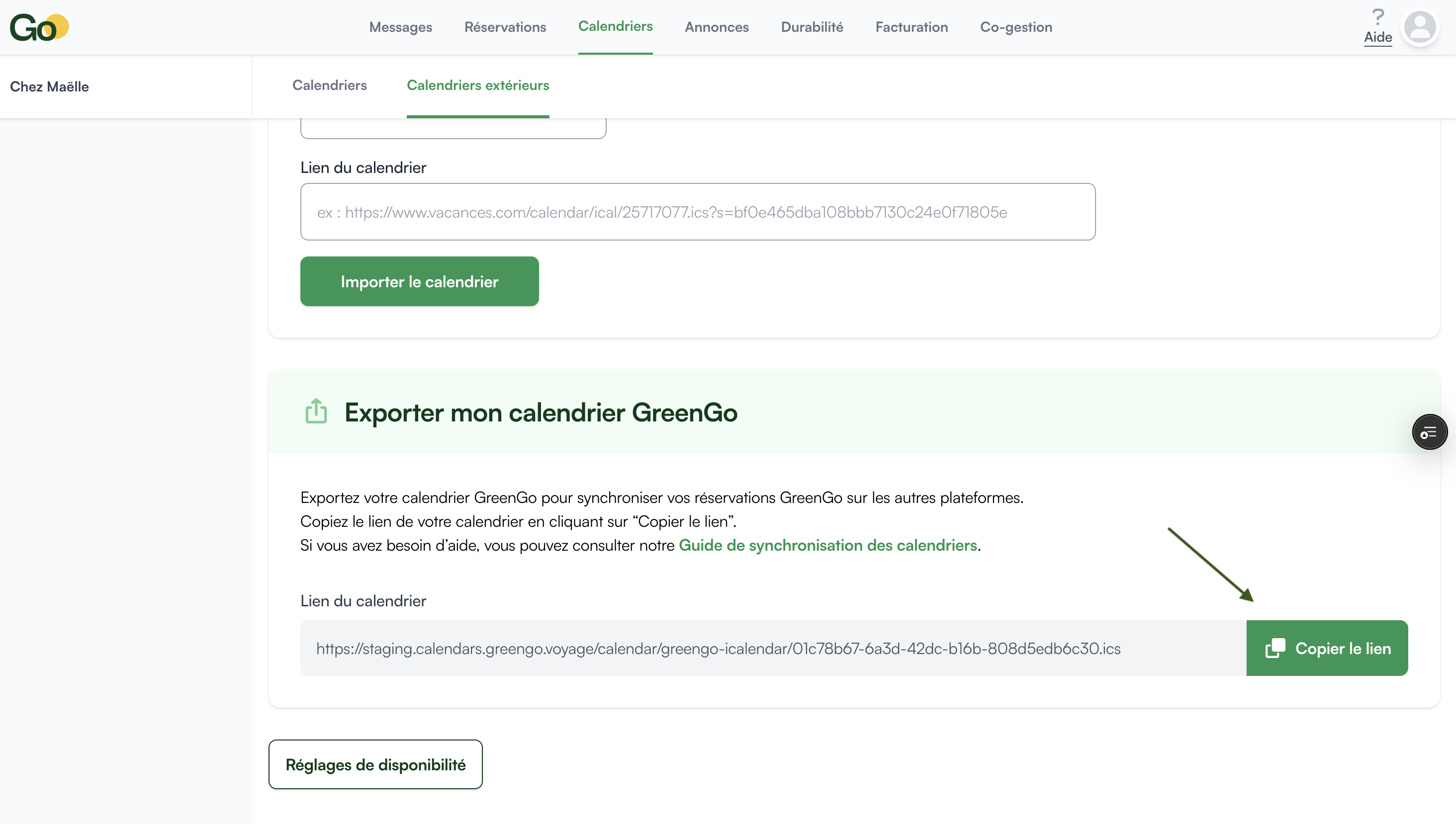
Now, still on this same page, in the section Exporter mon calendrier GreenGo, copy the given iCal URL.
-
Back to HBook > iCal sync page, click on “New calendar”, enter a name for it (“Apartment 101 Holidu” for example), paste the URL and click on “Add”.
We highly recommend the following setting for the synchronization to work properly:
-
in HBook > iCal sync > Import settings, set “Exclude blocked dates from the import” to “Yes”.
-
in HBook > iCal sync > Export settings, set “Include blocked dates in the export” to “Yes”.
-
if you have any date that you need to block (for example, for painting work), please do so from HBook > Reservations > Block accommodation.