
If you have created a document in HBook > Documents and if you want to attach it to an email, there are two ways to do so. These two methods are explained below.
Attach a PDF to an email
-
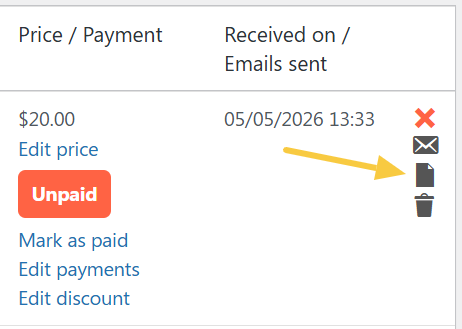
In the “Actions” column of the reservation list, click the “Document” icon
-
The document will open in a new tab. You can use your browser’s built-in feature to save a PDF of this document. Each browser has its own tool, but it’s usually found in the menu Print > Print as PDF.
-
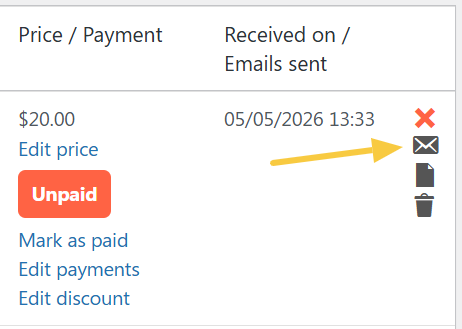
Back on the list of Reservations, click the “Email” icon.
-
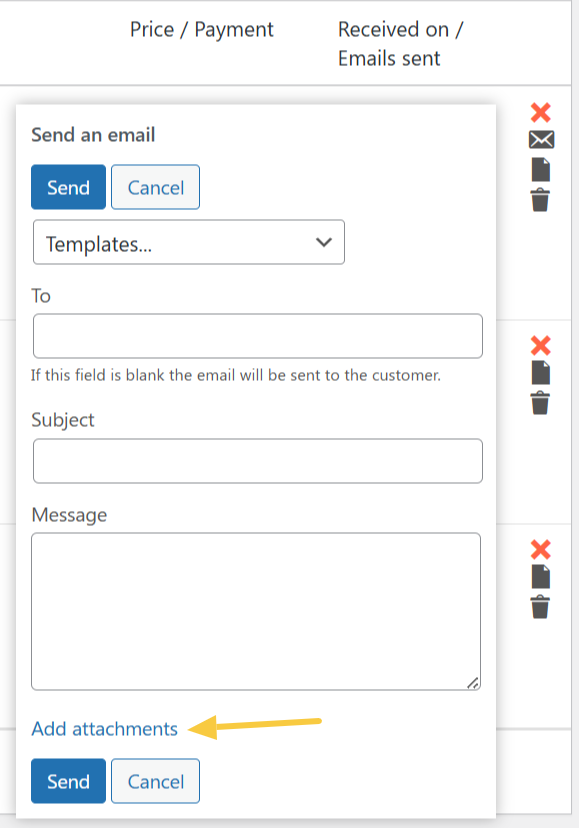
You can choose one of your email templates or write a custom email. Click “Add attachments” to open the WordPress Media library. This allows you to select the PDF file saved on your computer.
-
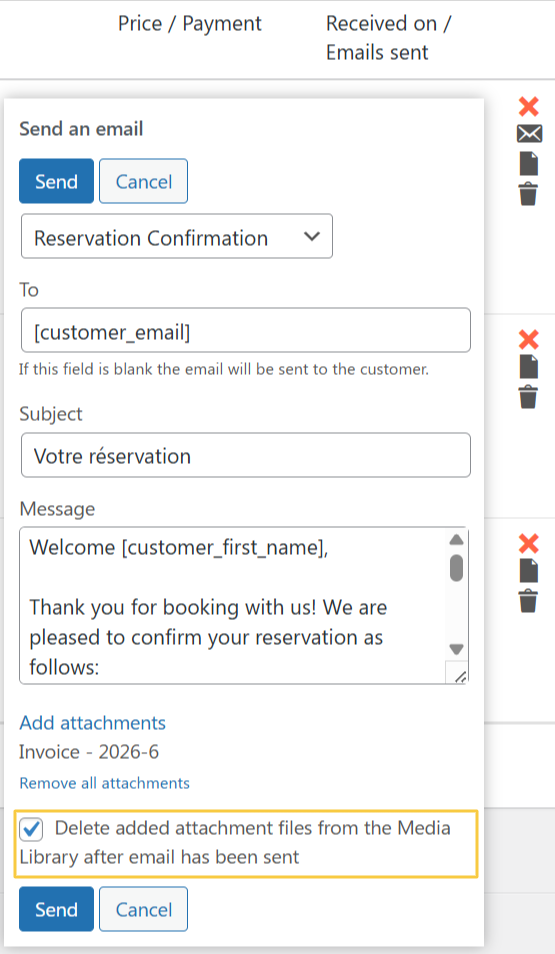
There is a checkbox you can select to have the document automatically deleted from your library Media once the email has been sent.
At this time, it is not possible to have the document automatically attached as a PDF when sending automated emails. This is a feature we hope to offer in the future. Thank you for your patience and understanding!
Send an email as a document
By choosing this method, you can send the document via automated email.
-
In HBook > Documents, edit the appropriate document.
-
Copy all the content.
-
In HBook > Emails, create a new email template and copy the content into the message. Make sure the email is format is in HTML.