
Once you have created your email template with Stripo, you can follow these steps to include HBook variables and add the content in HBook > Emails.
It is possible to add images directly from your WordPress Media by using the URL option. You can check this article to do so: How do I find the URL of an image in my WordPress Media Library?
-
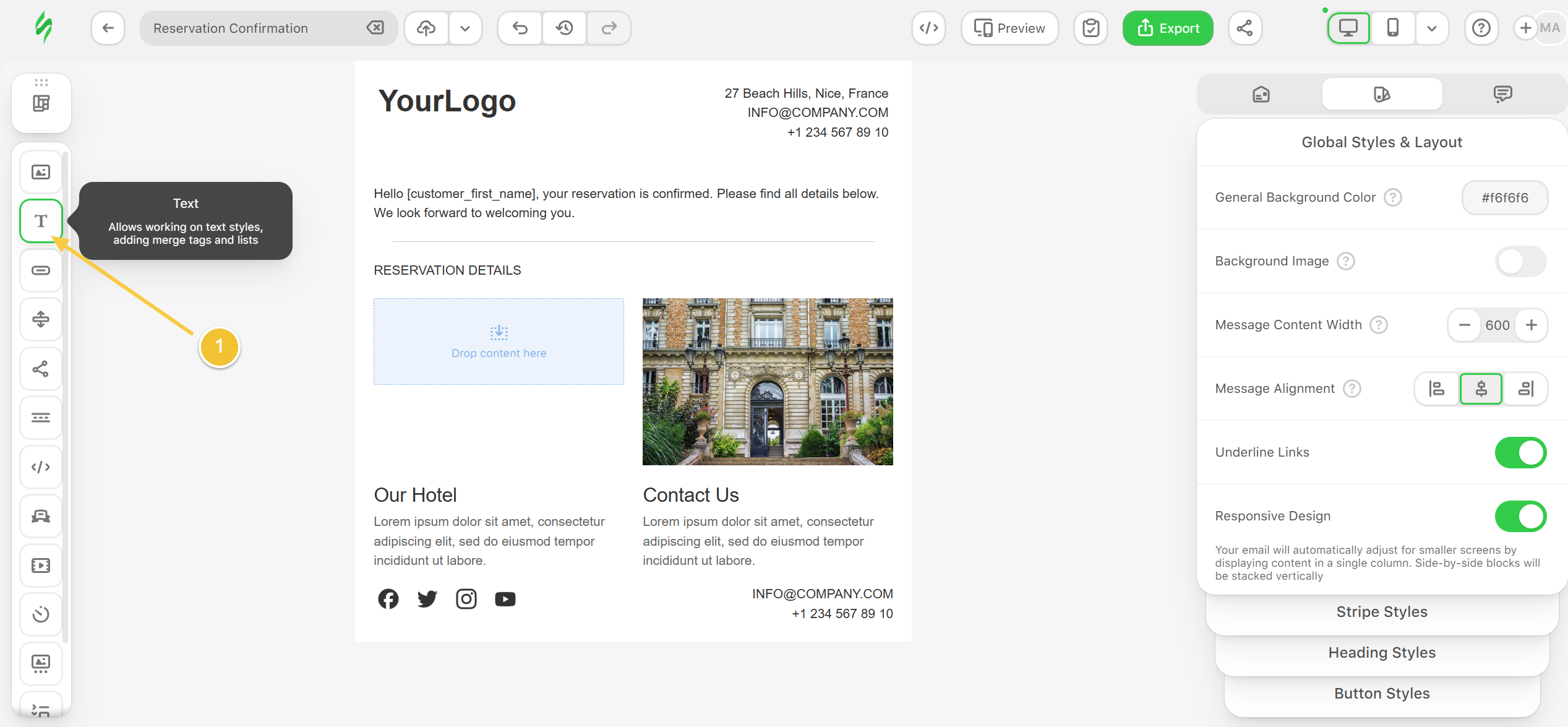
Wherever you wish to add HBook variables, you will add a Text element.
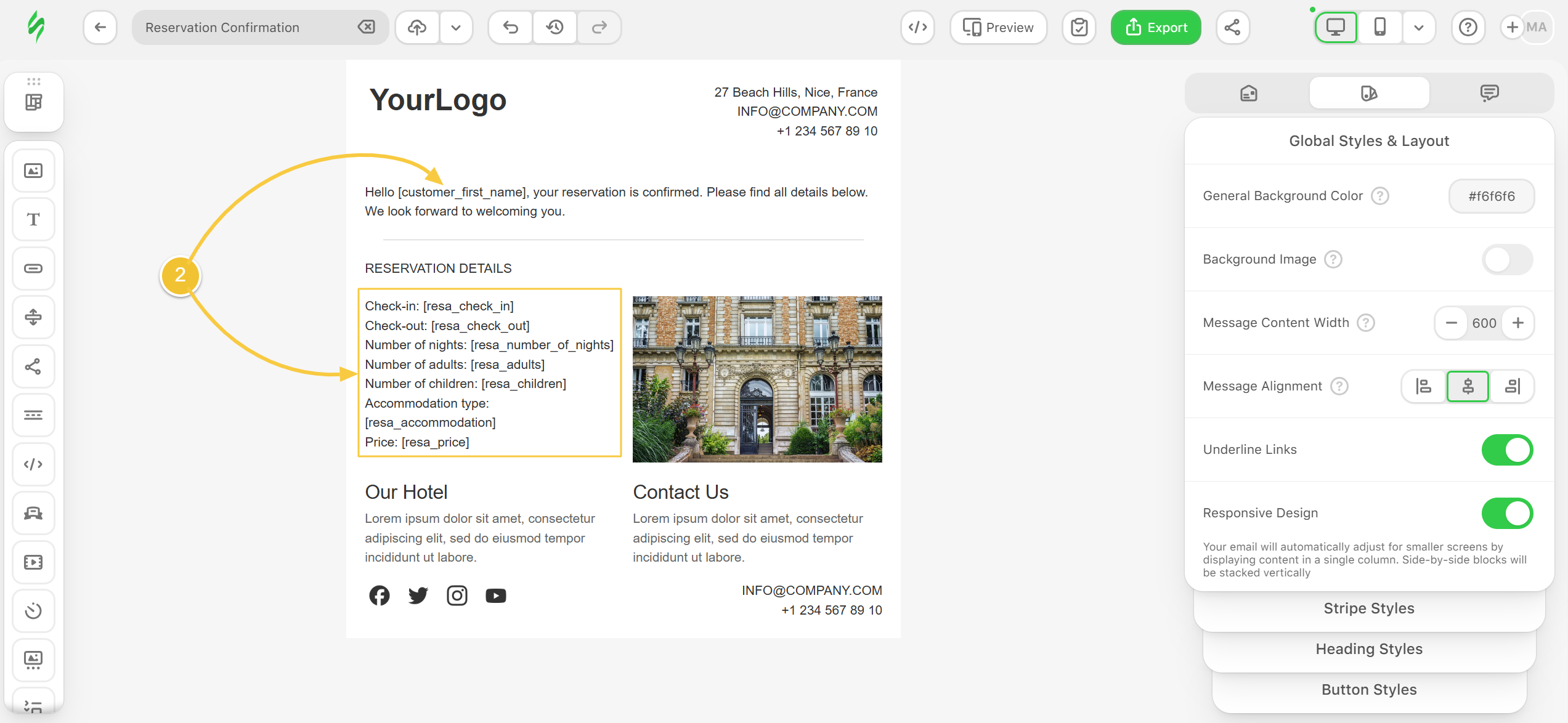
You can check the full list of variables in this section of our documentation: List of variables
-
In the added Text element, enter the HBook variables you wish to use.
-
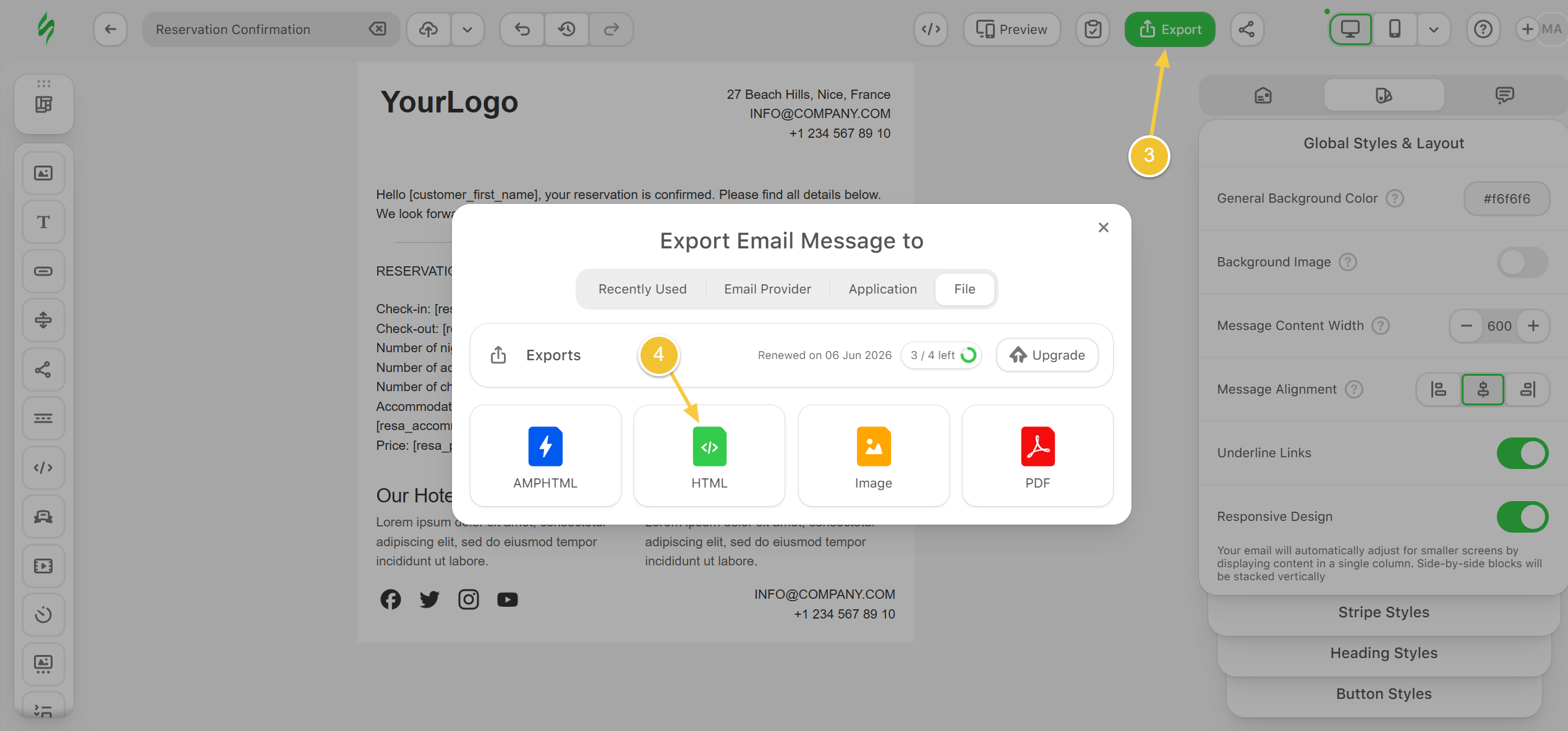
Click on Export
-
Select the HTML export method
-
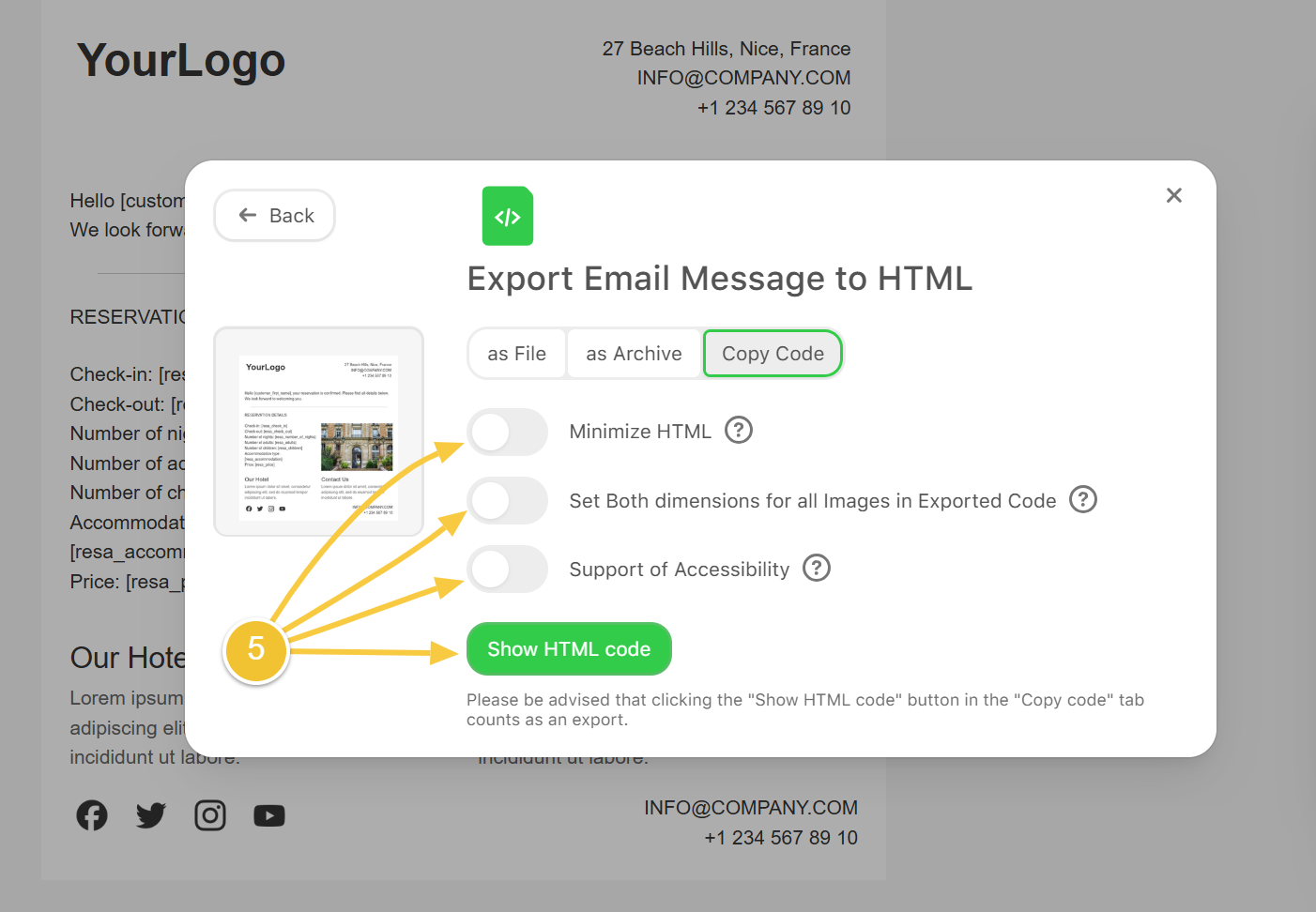
You may toggle off all options, then click on Show HTML code
If you have added heavy content to your email template, you may wish to toggle on the Minimize HTML option to optimize it for better performance.
-
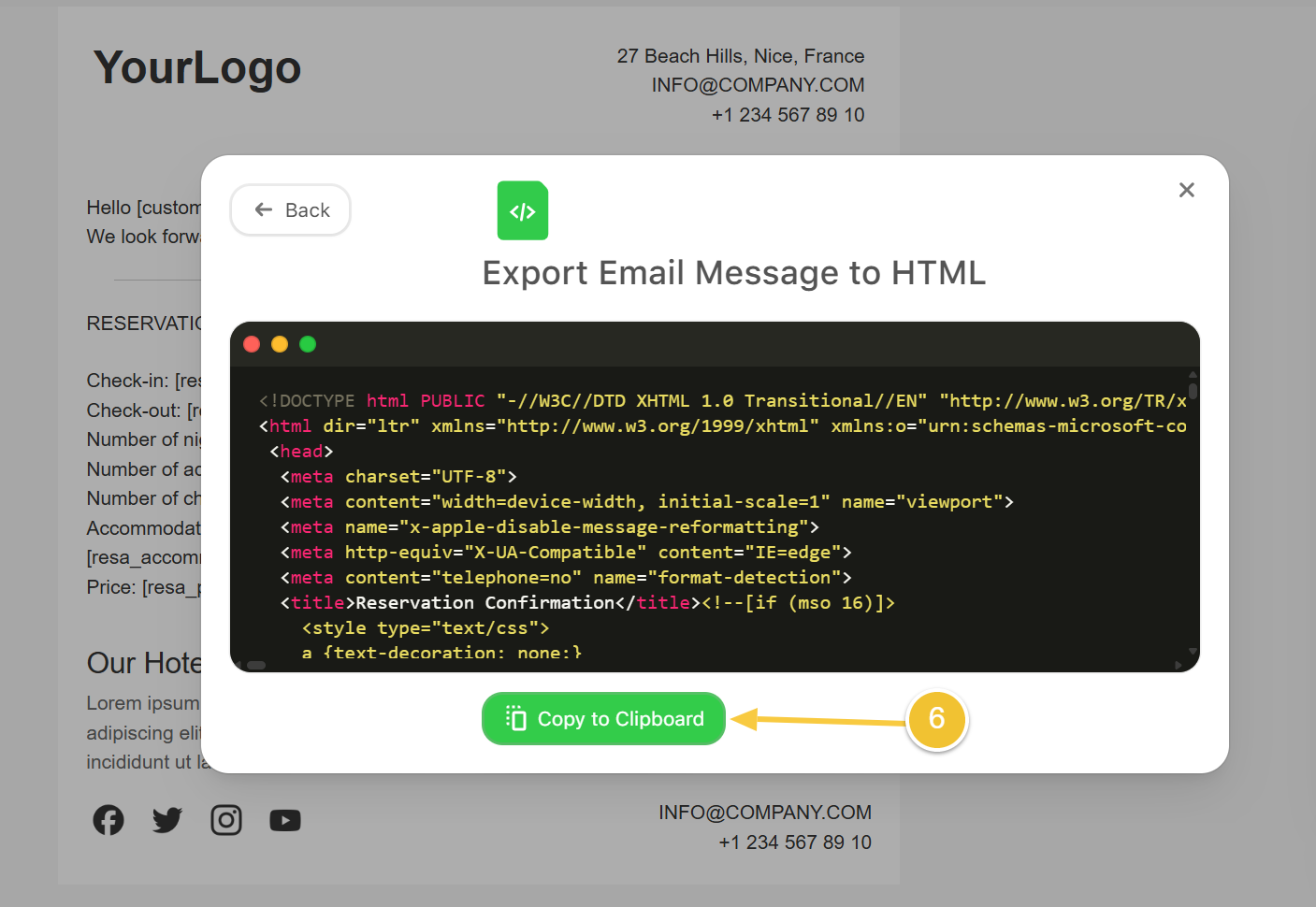
Click on Copy to Clipboard
-
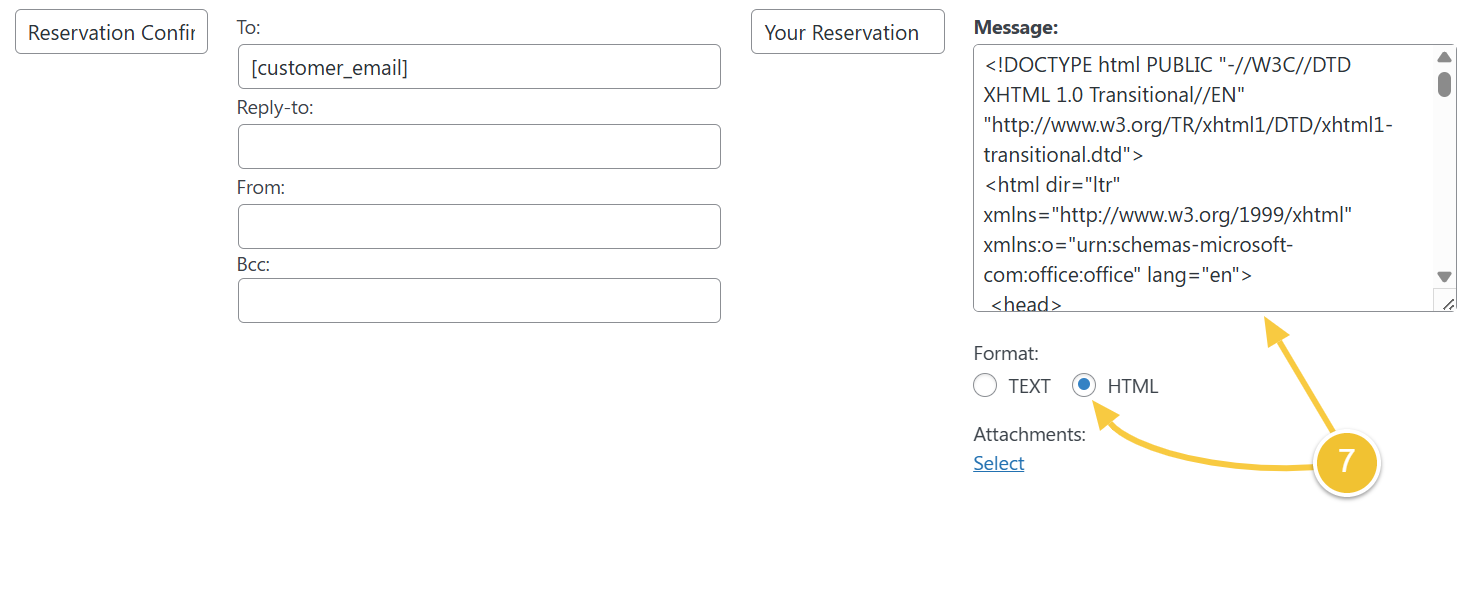
Back in HBook > Emails, in the message section, select the HTML format and paste the HTML code from Stripo.