
With version 1.0.1 of de HBook Connect, you cannot add different listings with the same Google Business URL or the same coordinates. This was in place as Google Vacation Rentals documentation recommended it. However, after exchanging with the technical team for Google Vacation Rentals, we have been advised to allow multiple listings with the same GPS coordinates. If you have a Vacation Rental property with different self-contained units at the same geolocation, please wait for the release of version 1.0.2 before adding your property units in HBook Connect. You will then create one property per unit, with the same GPS coordinate and Google Profile URL. You will specify in the “Address 2” field the number or name of the unit. Thank you.
To access this menu, go to HBook > HBook Connect.
On this page, you will be able to:
-
List your properties, provide the required information to identify your property according to your Google Business Profile, associate HBook accommodation types with the corresponding property, and share additional information.
-
Transmit information to Maestrel, who acts as a Connectivity Partner for Google Hotel and Vacation Rentals
What is a HBook Connect Property?
A property in HBook Connect is the equivalent of a Google Business Profile. It will be a listing in Google Hotels/Vacation Rentals, with its attributes and associated inventory, rates and availability.
Please make sure the information you provide is accurate and match the data of your Google Business Profile and Google Maps. Google will cross-check to match the information transmitted with the one presented on Google Business Profile and Google Maps.
Default language and translations
We share with Google Hotels and Vacation Rentals listings in multiple languages. The rule is that all properties are created in English, which is the default language for Google Hotels/Vacation rentals.
You can provide translations for up to 3 languages for any text for which language is relevant.
Please consult this help article from our knowledgebase: Guidelines for translations of property name and description
Non-translatable fields
Address fields are non-translatable and should be provided exactly as they are on Google Maps, even if it is in another language than English.
If your business is located in France, you will indicate the address as you write it in French. For example: “Route de Vannes” or “8 chemin des roseaux”.
Add a property
When you add a property, you share the information that will be used by Google to identify your listing. One property corresponds to one Google Business profile.
Please take the time to provide accurate information. Once a property is added, some fields will not be editable. If you made a mistake when filling in the form fields, you will need to delete the property and add it again. You can check the list of non-editable fields.
-
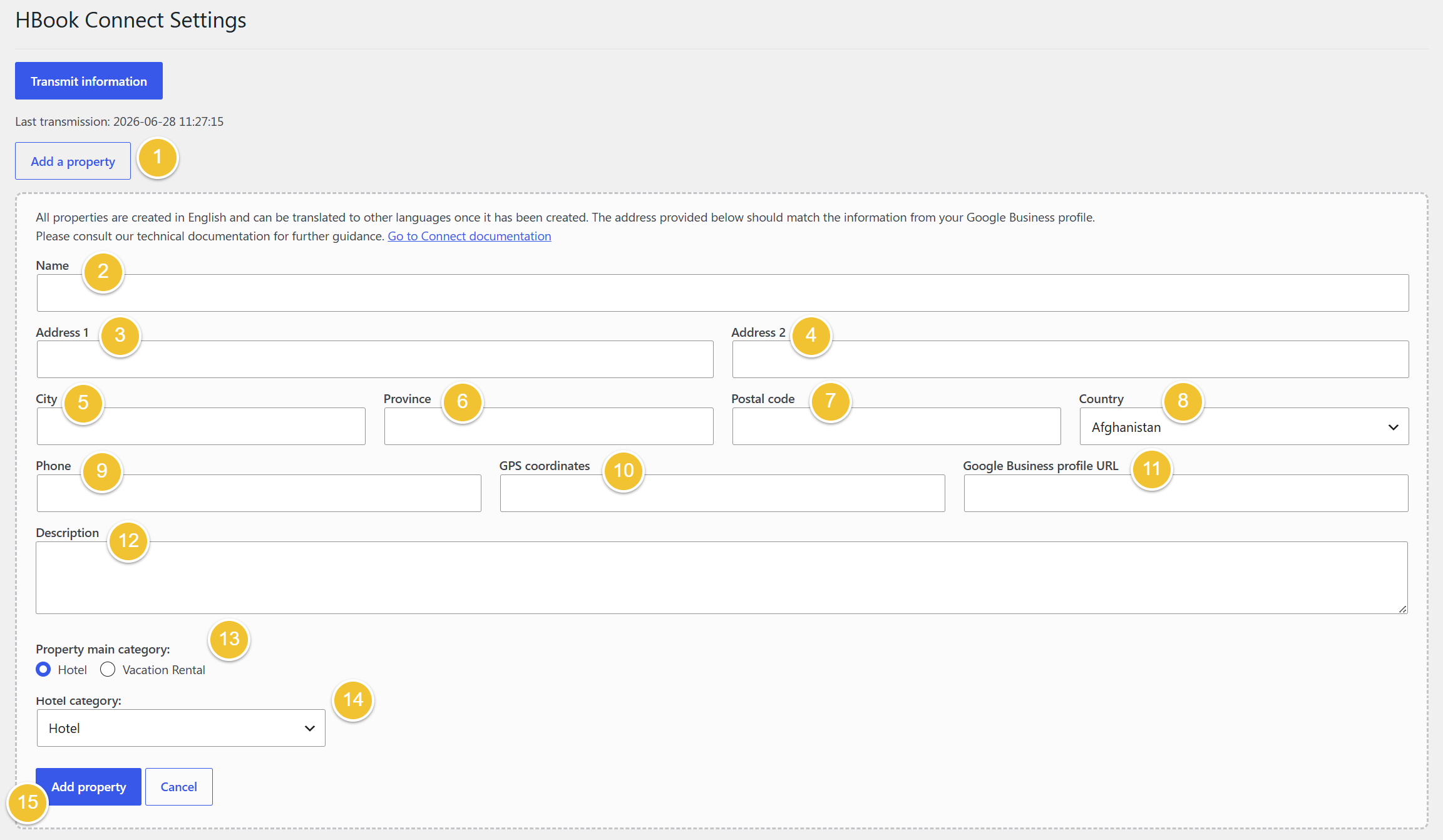
Click on Add a property
-
Indicate the Name of the property. It should be the same as in your “Business name” in your Google Profile.
-
Add your primary Address. It should be the same as the “Business location” indicated by Google Maps. The Address 1 field is your primary street address.
-
You can use the Address 2 field to add optional secondary street address. Apartment or unit numbers must be included here if applicable.
Note that P.O. boxes or other mailing-only addresses are not considered full physical addresses
-
Add your City. It should be the same as the “Business location” indicated by Google Maps.
-
Add your Province. This can be state, province, or region, depending on your address structure. If you are unsure, please check what is indicated in your “Business location" as indicated by Google Maps or in Location and area > Business location when editing your Google Profile.
-
Indicate your Postal code. It should be the same as the “Business location” indicated by Google Maps.
-
Select your Country.
-
Add your Phone number. It should be the same as in your “Contact information” in your Google Profile.
The phone number should include a country code and starts with + or 00.
-
Indicate the GPS coordinates. It needs to match the latitude and longitude of your property in Google Maps. Please check these instructions to find the Google Maps coordinates of your property. Enter the information exactly as copied following the instructions provided.
-
Add your Google Business Profile URL. Please check these instructions to find the expected URL.
-
Add a Description. Free text describing the unique qualities of the property.
-
Indicate if the Main property category. If you are not sure if your property is a Hotel or a Vacation Rental, consult Categories for lodging businesses.
-
Select the exact Category. It should be the same as in your “Business category” in your Google Profile.
-
Click on Add property
Edit a property
Once you have created a property, you can edit some fields, but other fields are not editable. They are important field to validate your property with Google Hotel/Vacation Rentals.
List of non-editable fields
-
Business Profile URL
-
City
-
Province
-
Postal code
-
Country
-
GPS latitude and longitude coordinates
-
Main category and Business category
Modify a property for an incorrect non-editable field
If you wish to modify a non-editable field, you will have to re-create the property again. For your convenience, we pre-fill the property fields with the last one entered, which means that you will find the values of the last property you created.
-
Click on Add a property.
-
You will see the information of the last property you created. Update the information.
-
Click on Add property to save it. A new property is created.
-
Then, you can delete the property that has the incorrect information by clicking on Delete property.
Edit a field
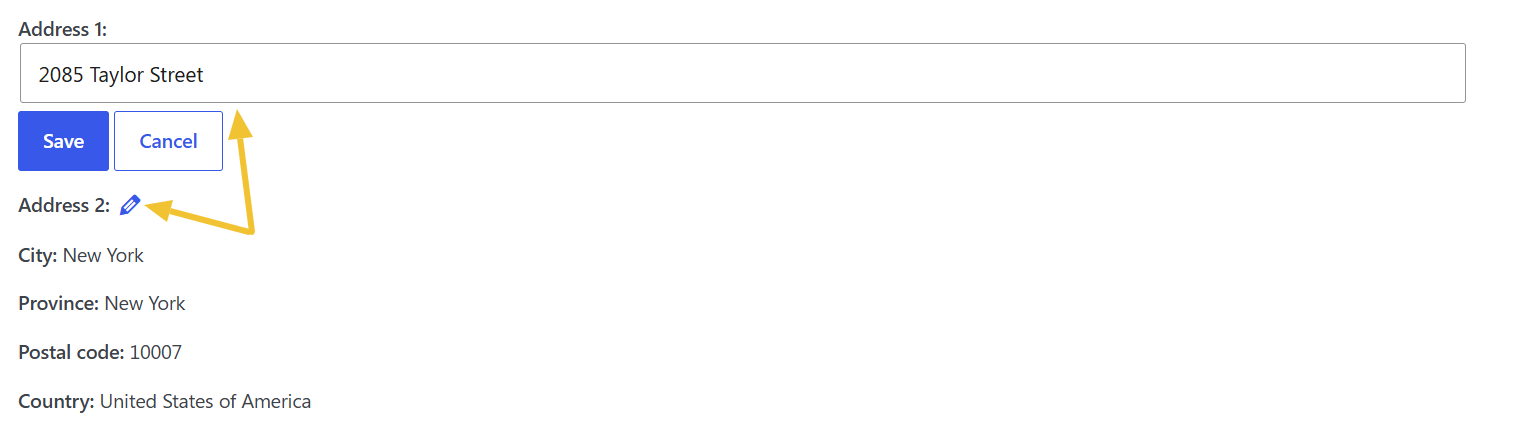
To edit a field for a Property, click on the Edit pencil icon. Update the information and Save.
Add property pictures
These are pictures for the Property.
-
Vacation Rental property: you will share here all pictures you wish to share for your vacation rental property. It is required to add at least 8 pictures.
For Vacation rental property, we recommend that all images set as “Property picture” should be included in the page set as “Property page”, for example, in one or separate galleries.
-
Hotel property: you will share here pictures of the hotel (main building, common areas, external areas…).
For Hotel property: in a future release, it will be possible to add pictures specific to each accommodation type of your property. This is where your room pictures will go.
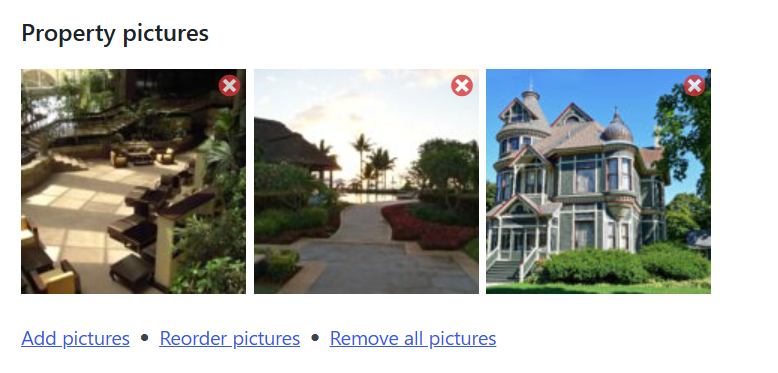
Once you have created your property, you will be able to add pictures. You can easily reorder the selected pictures, add new pictures, or remove a specific picture or remove all of them.
Please consult this help article from our knowledgebase: What images can I use for Google Vacation Rentals/Hotels?
Associate Accommodation Types
We are already preparing the next release of HBook Connect plugin, where you will be able to add the following information:
-
Property Features/Equipments/Services
-
Accommodation features : For properties belonging to the “Hotel” main category, you will be able to add images and specify features/equipment/services specific to each Accommodation.
Once you have created the property, you will be able to select the HBook accommodations that are to be associated with this property.
Depending on your Property main category, you will see different options.
-
For Hotel, you can associate various accommodation types. It will correspond to your Room Types.
-
For Vacation rental, you can associate one accommodation type. It will correspond to your Vacation rental Property.
Select accommodation types - Hotel Property
-
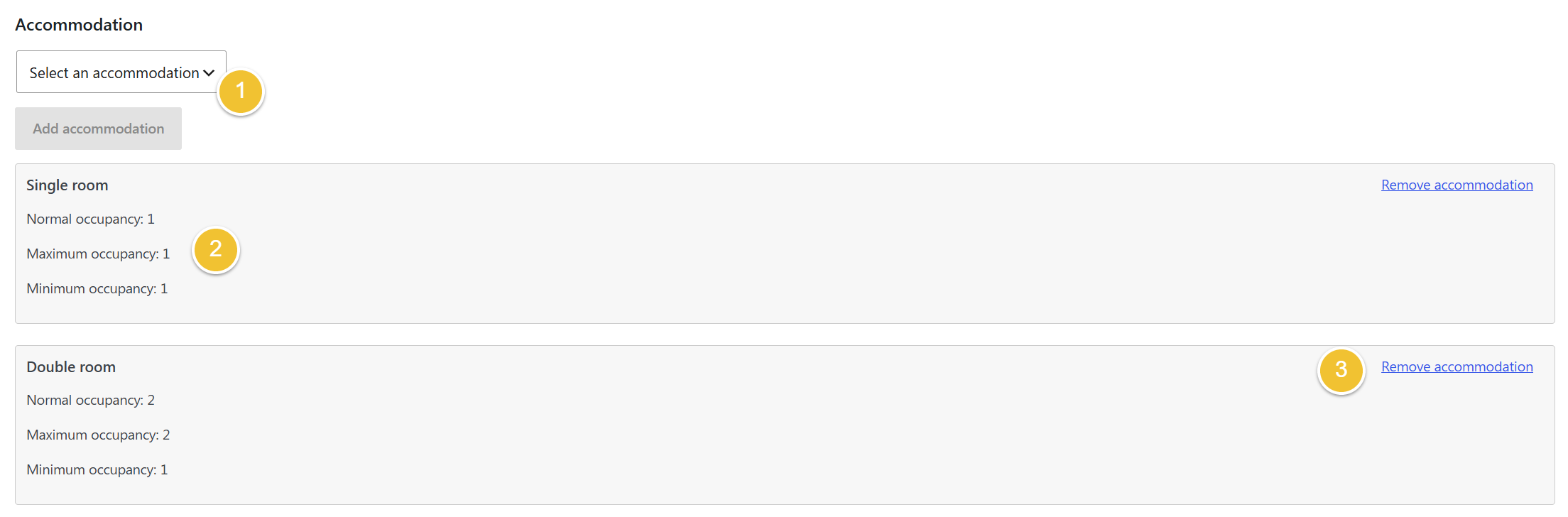
Click on Select accommodation to see the list of HBook accommodation types that you can add for the property.
-
The occupancy settings will automatically been retrieved from the Acccommodation Type settings,
-
You can also click on Remove accommodation to disassociate an HBook accommodation type from the property.
Associate accommodation type - Vacation Rental Property
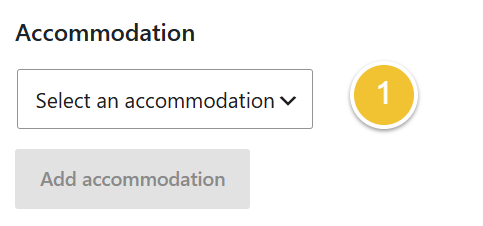
-
Click on Select an accommodation
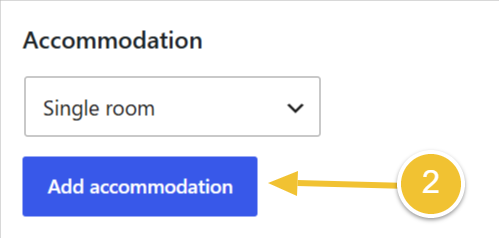
-
Click on Add accommodation.
The maximum occupancy setting will automatically be retrieved from the Accommodation Type settings. This is the only occupancy information that Google Vacation Rentals needs for the listing.
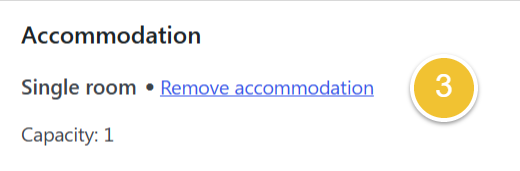
-
If you wish to dissociate this Accommodation Type from this property, click on Remove accommodation.
Associate a Property page - Vacation Rentals only
If your property is a “Vacation Rental” property, you need to indicate which page is used to showcase the property. Typically, this is the page where a visitor can read a general presentation of the property and view photos, features, etc.
The property page is unique to each property. It means that if you have 2 properties, each property should have its own “property page”.
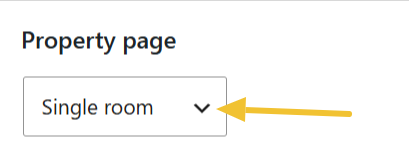
You may have a property page that does not contain a booking form. In a future version, you will set the page to be used as the "Landing page”, which will be the page where the customer will be redirected to in order to complete his reservation.
Translate information
A property is always created in English first, even if the main language for your website or country is not English.
Please make sure you provide any information that is not usually translated (like address details, for example) in the same language as it can be seen in Google Maps or in your Google Business Profile.
Please consult this help article from our knowledgebase: Guidelines for translations of property name and description
You can add translations for up to 3 different languages. Add a language only if it is relevant for your business. Typically, you will add the translation in the language of the country where your business is based, and you may as well translate for a targeted audience.
-
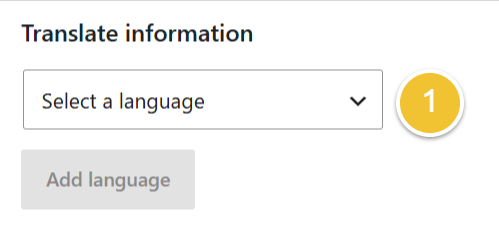
Select the language you wish to add.
-
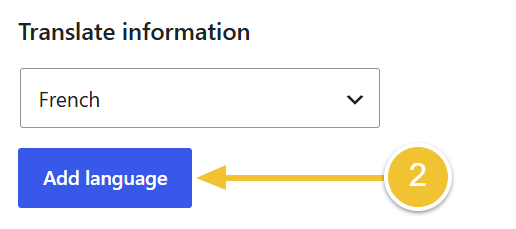
Click on “Add language”.
-
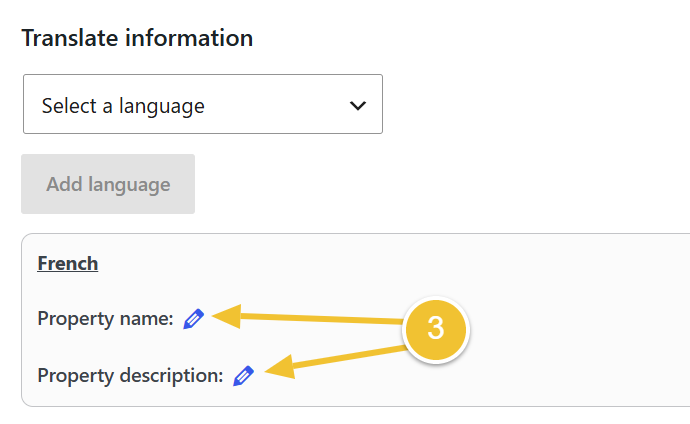
You will then see all strings that can be translated. To add or edit a translation, click on the Edit pencil icon.
Connection status
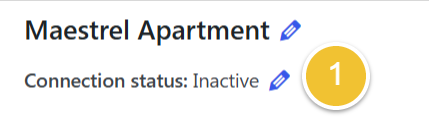
You will see the connection status right below a property name.
A HBook Connect property can have the following connection status: inactive or active.
When the status is inactive, it means that the property is excluded from the properties transmitted for the connection with Google. This is useful:
-
when you are drafting the property information
-
when you wish to disconnect a property
When the status is active, the property is included in the properties transmitted for the connection with Google.
-
To edit the connection status, click on the Edit pencil icon.
Requirements to activate a property
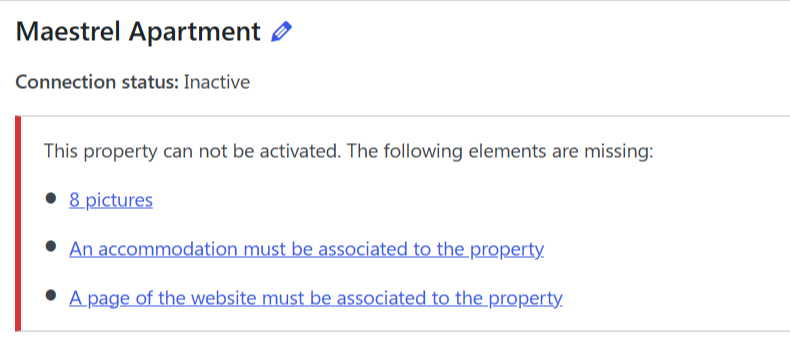
Google Hotel and Google Vacation Rental have different requirements for a listing to be connected. If there is required information that is missing for a Property, you will not be able to activate the connection. You will see a notification with the missing information.
Transmit information
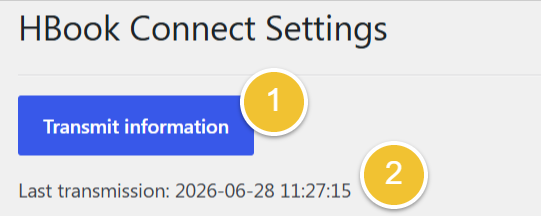
Once you have created or modified a Property, you need to transmit the information to Maestrel if you wish these changes to be taken into account and shared to Google Hotels and Vacation Rentals.
-
Click on Transmit information to push the updated information to Maestrel.
-
Here you can check the timestamp of the last transmission.
Understanding the notifications
Transmission result notifications
A notification will be displayed with the transmission result.
For a successful transmission notification:

In case of an unsuccessful transmission, the notification will include the reason when available.

Please do not hesitate to contact us if you have any doubt or problem with the transmission of your properties.
Automatic transmission
If you update an Accommodation Type that is associated with an active Property, we will automatically transmit the updated information to Maestrel. For example, you modify the occupancy settings, send the accommodation type to trash, or unpublish it.
Updating information notification
Whenever you make changes on your HBook Connect properties, this notification will appear:

Please note that there are only two occasions when it is necessary to click on “Transmit information":
-
the first time you set up HBook Connect properties
-
whenever you make some changes on any property
Subscription notification
You may see the following notification that informs you about the allowance for the Basic subscription to Maestrel Connect Service.

We are currently in the process of being certified with Google Hotels and Google Vacation Rentals. We will ask to sign up for a subscription to Maestrel Connect Service only once we can connect you “Live” with Google Hotels and Google Vacation Rentals. This notification is displayed when you associate more than 5 accommodation types or when you have more than 20 accommodations in total associated to your Connect properties. These are the allowances for the Basic subscription.
When you will subscribe, you will pay the yearly subscription corresponding to the number of accommodation types and accommodations in total, that you wish to connect.
For your information, below is the pricing information for Maestrel Connect Service and a couple of examples.
Basic Subscription - $90 per year
-
Connect up to 5 Accommodation types
-
Connect a maximum of 20 accommodation in total
Extra Subscription - + $40 per year
-
Add an extra allowance of 5 more Accommodation types
-
Add an extra allowance of 20 more accommodation in total
Examples of subscription prices
-
4 Google Vacation Rentals properties = 4 accommodation types / 4 accommodation in total => $90 per year
-
6 Google Vacation Rentals = 6 accommodation types / 6 accommodation in total => $90 + $40 per year
-
1 Google Hotel with 3 accommodation types, and a total of 25 rooms = 3 accommodation types / 25 accommodation in total => $90 + $40 per year
-
3 Google Vacation Rentals (3 accommodation types, 3 accommodation)
+ 1 Google Hotel with 4 Single rooms and 5 Double rooms (2 accommodation types, 9 accommodation)
= 5 accommodation types / 12 accommodation in total => $90 per year