Once you purchase HBook Connect plugin, you will receive a confirmation email and the download link for HBook Connect will be in this email.
Installing HBook Connect
There are 2 ways to install a WordPress plugin.
1. Using the WordPress installer
-
Go to Plugins > Add new
-
Click Upload
-
Select the hbook-connect.zip file
-
Click Install now
-
Once the plugin has been installed, click Activate Plugin
2. Uploading the plugin via FTP or File manager
If you are using FTP:
-
Unzip the plugin as you need to get an unzipped hbook-connect folder that can be uploaded on your server later on.
-
Transfer the hbook-connect folder to the wp-content/plugins/ folder on your server
If you are working from your File Manager:
-
Upload the hbook-connect.zip file into the wp-content/plugins/ folder on your server and extract it
-
Log into WordPress and go to Plugins
-
Find the HBook Connect and click Activate Plugin
There are no separate licence for HBook Connect plugin. It is linked to your HBook plugin and WordPress website URL.
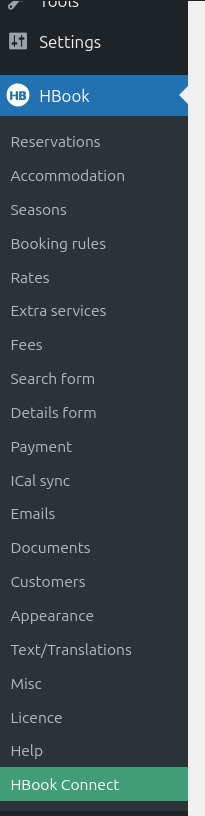
HBook Connect menu
Once activated, you will see a new sub-menu “HBook Connect” in the HBook menu of the WordPress admin sidebar. It is at the very bottom, with a green background.