
Thanks to the partnership between Maestrel and VosFactures, you can enjoy a 20% discount on your first payment.
Sign Up for VosFactures
-
Use the following link to go to the VosFactures website:
https://vosfactures.fr?partner=mabah4
-
Click “Inscription.”
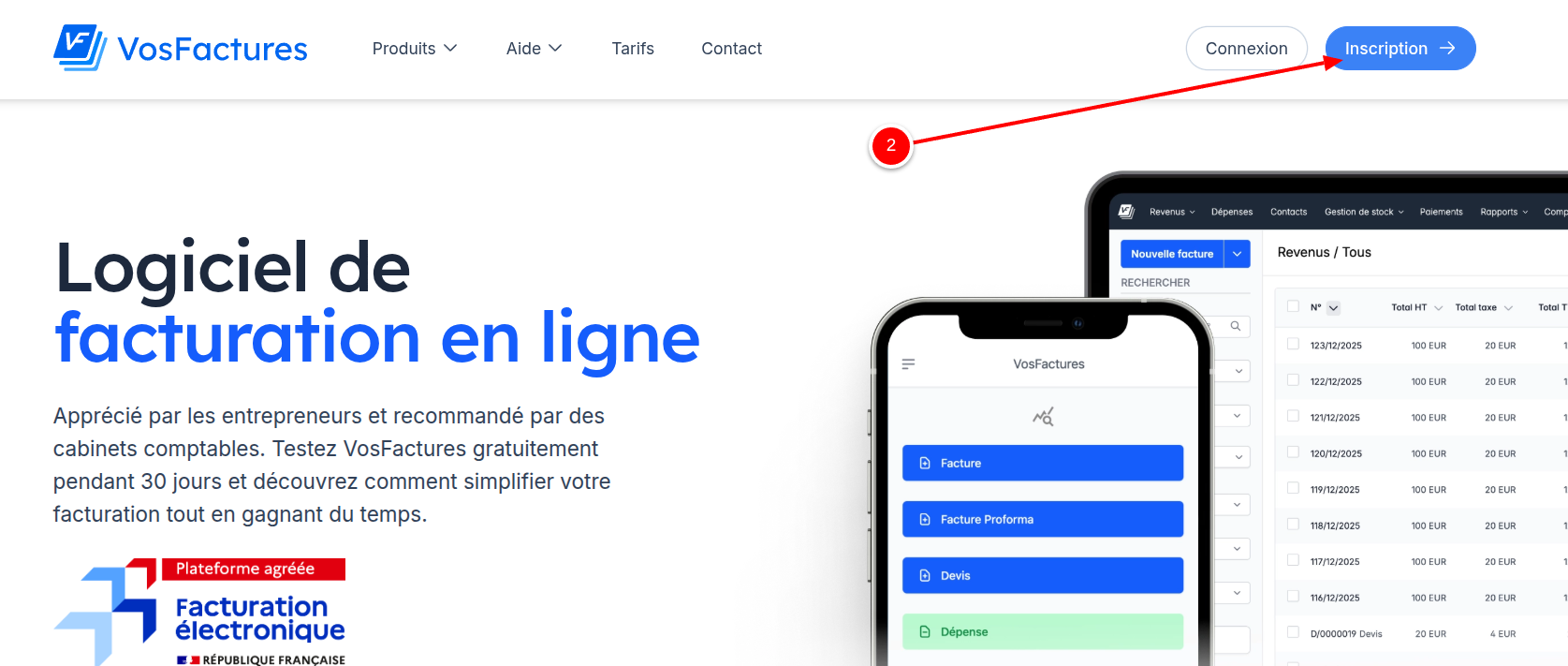
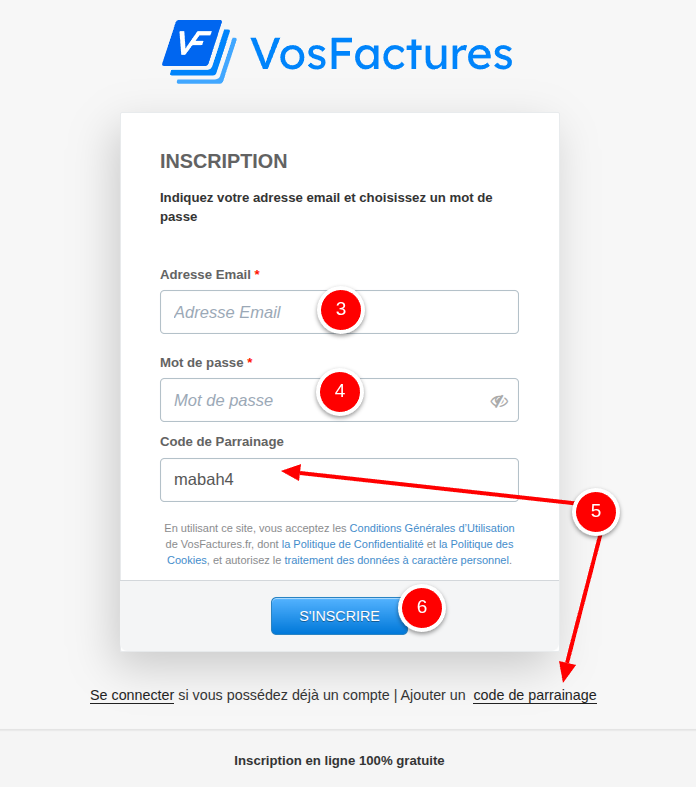
This will open the following registration form:
-
Enter your email address.
-
Choose your password.
-
Important: Click “Inscription” to verify that the referral code mabah4 is present. If it isn't, add it. This code confirms that your subscription to VosFactures is indeed through the partnership with Maestrel.
-
Click “S’inscrire”.
You will then see the following screen: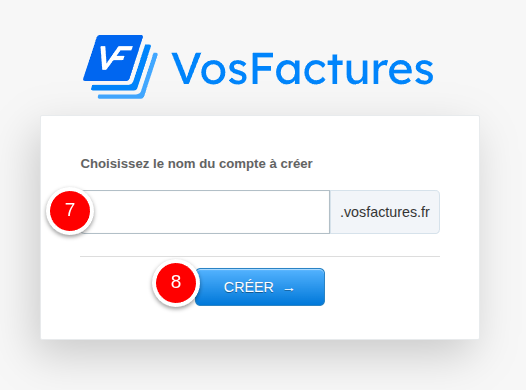
-
Enter the name you want to give your VosFactures account. This could be, for example, your company’s name. This will be used for your login URL to the VosFactures dashboard. For example, if I enter “my-company” in this field, the login URL will be “my-company.vosfactures.fr”.
-
Click “Créer.” This is the last step, and you’ll then see your dashboard, which looks like this.
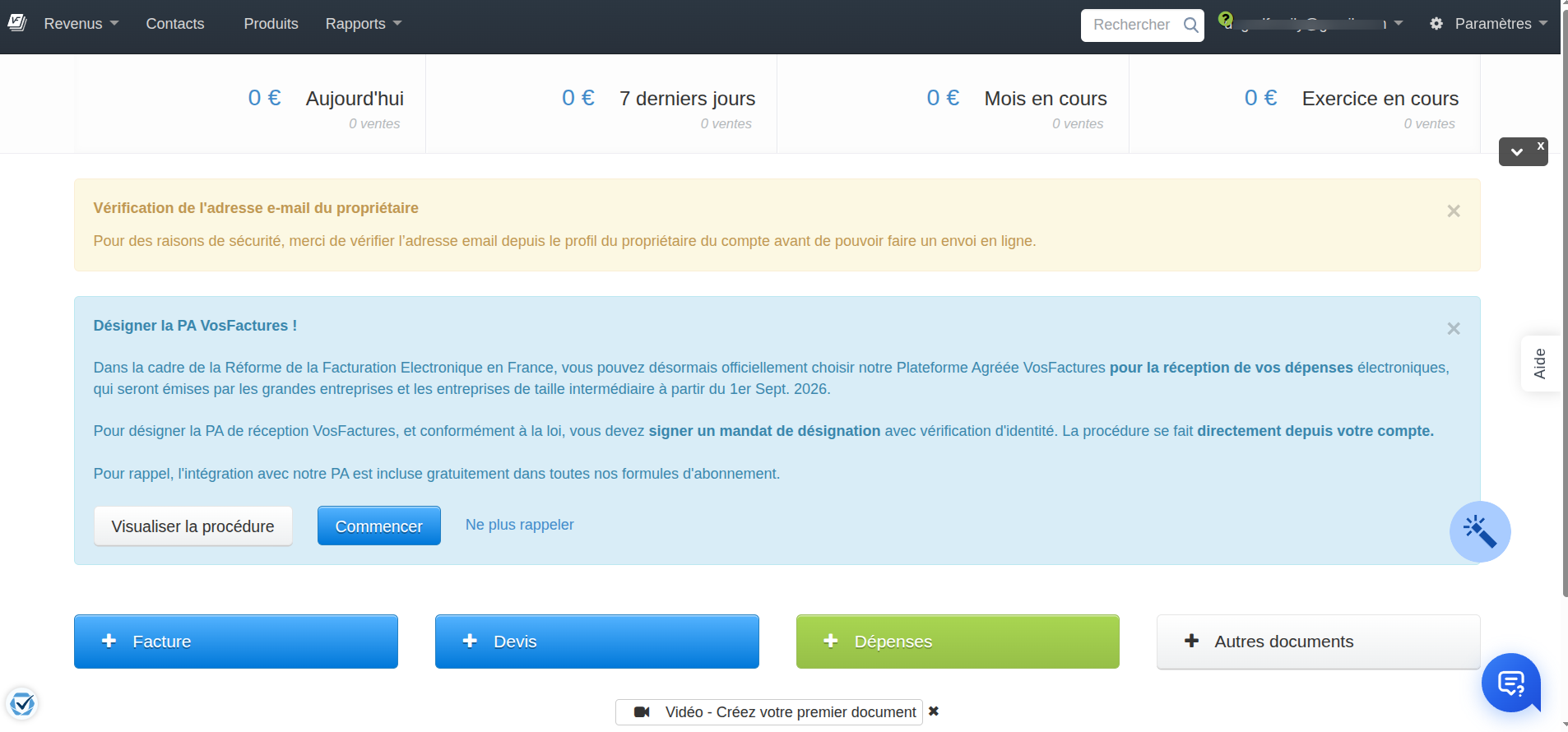
Your VosFactures account has been created. You have a 30-day trial period, and the account is set to “Micro” by default (free account).
Next Steps for Setting Up Your Account
-
You will see the following message in your VosFactures dashboard:
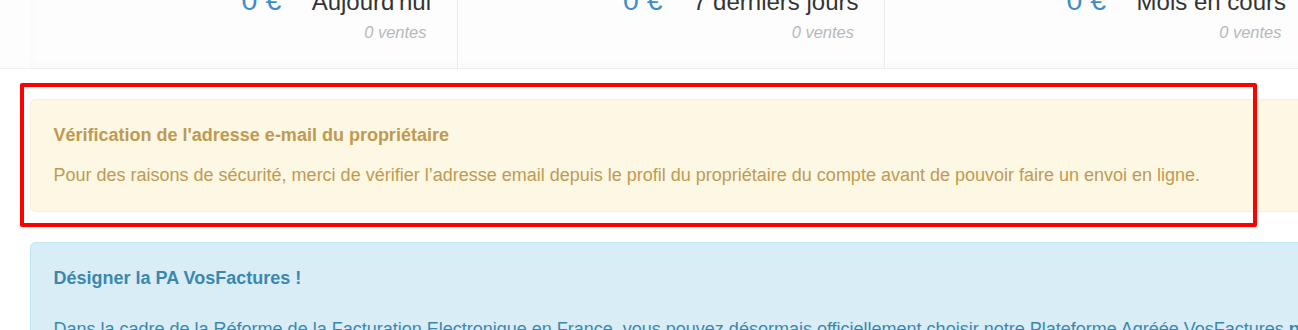
You need to check your email. You should have received an email from VosFactures to verify your email address. -
Add information about your business. In Paramètres > Compagnies/Départements, you can add the information that will appear as the invoice header. Add your company name, address, logo, etc.
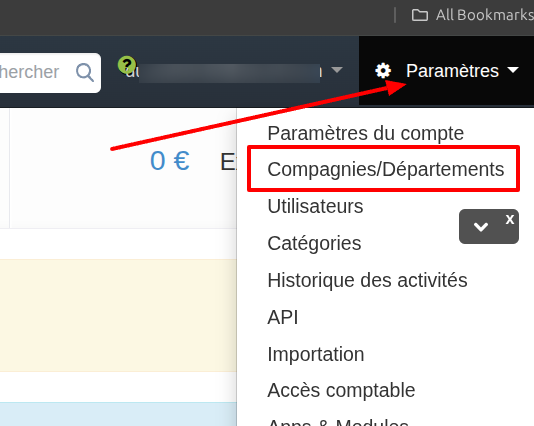
Do you have multiple business activities? Create multiple departments. In the “VosFactures for HBook” extension, you can specify the ID of the department involved in HBook electronic invoicing.
-
Check out VosFactures to learn how to use the software.
The “VosFactures for HBook” plugin will be available soon, and we will, of course, add a page to this technical documentation covering the plugin’s settings. Thank you for your patience!
How can I get the 20% discount?
When you sign up for VosFactures, you are automatically enrolled in the “Micro” plan, which is the free one.
The presentation of 20% that you can take advantage of through Maestrel applies to your first payment.
-
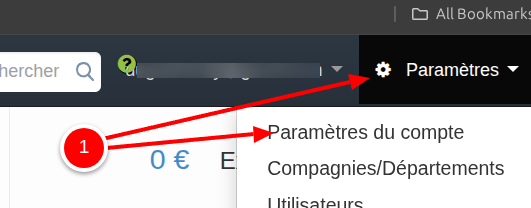
Go to Allez dans Paramètres > Paramètres du compte.
-
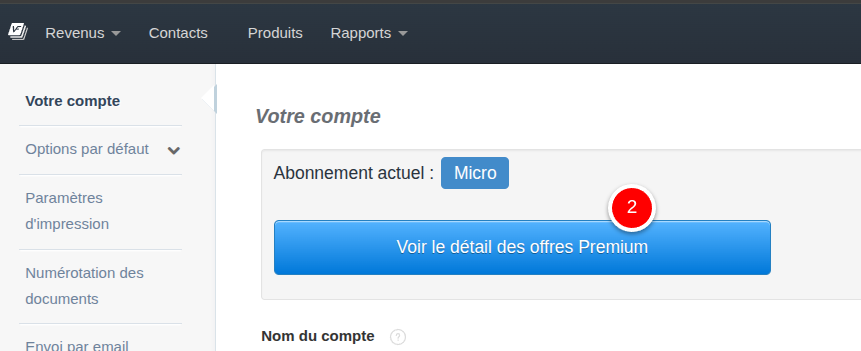
You'll see that your account is set to "Micro." Click "Voir le détail des offres Premium"
-
Choose your plan and click “S’abonner.”
The prices listed are the “monthly” rates. VosFactures automatically applies a discount for an annual subscription. You can select this option in the next step.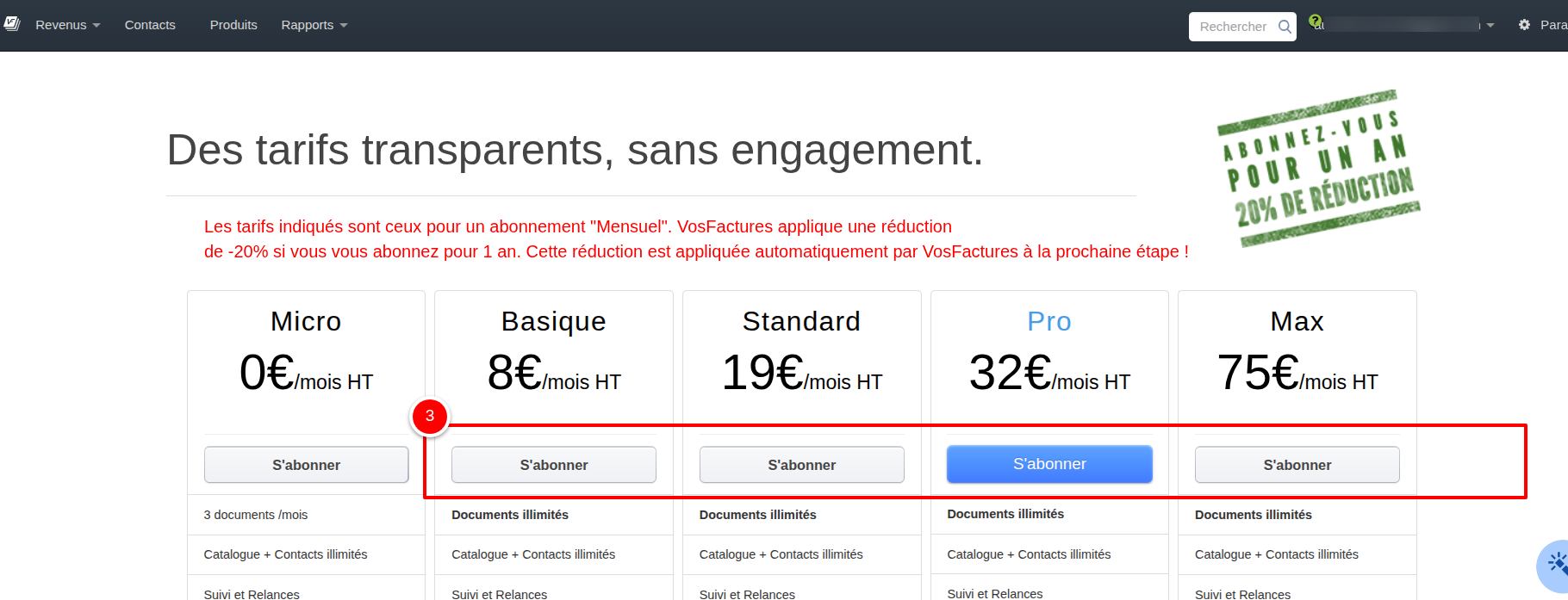
If you would like to view the different VosFactures rates: https://vosfactures.fr/tarifs
An important step: You can now choose your subscription period and enter the Maestrel promo code to get 20% off your first payment.
By default, VosFactures selects the 12-month subscription. You can choose other subscription lengths. The discount shown is the one VosFactures applies compared to the “Monthly” rate.
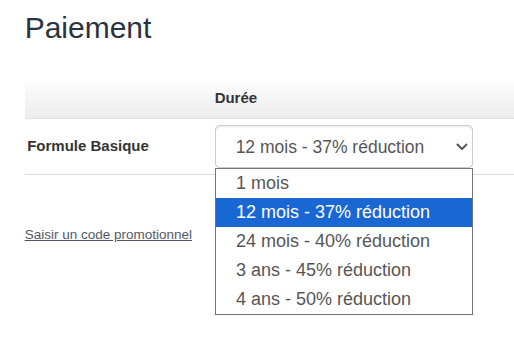
The discount associated with the Maestrel promo code is applied afterward. It’s important to note that the 20% Maestrel discount will apply to your first payment. This means that if, for example, you choose a 3-year term, you’ll receive a 20% discount on that payment for 3 years.
-
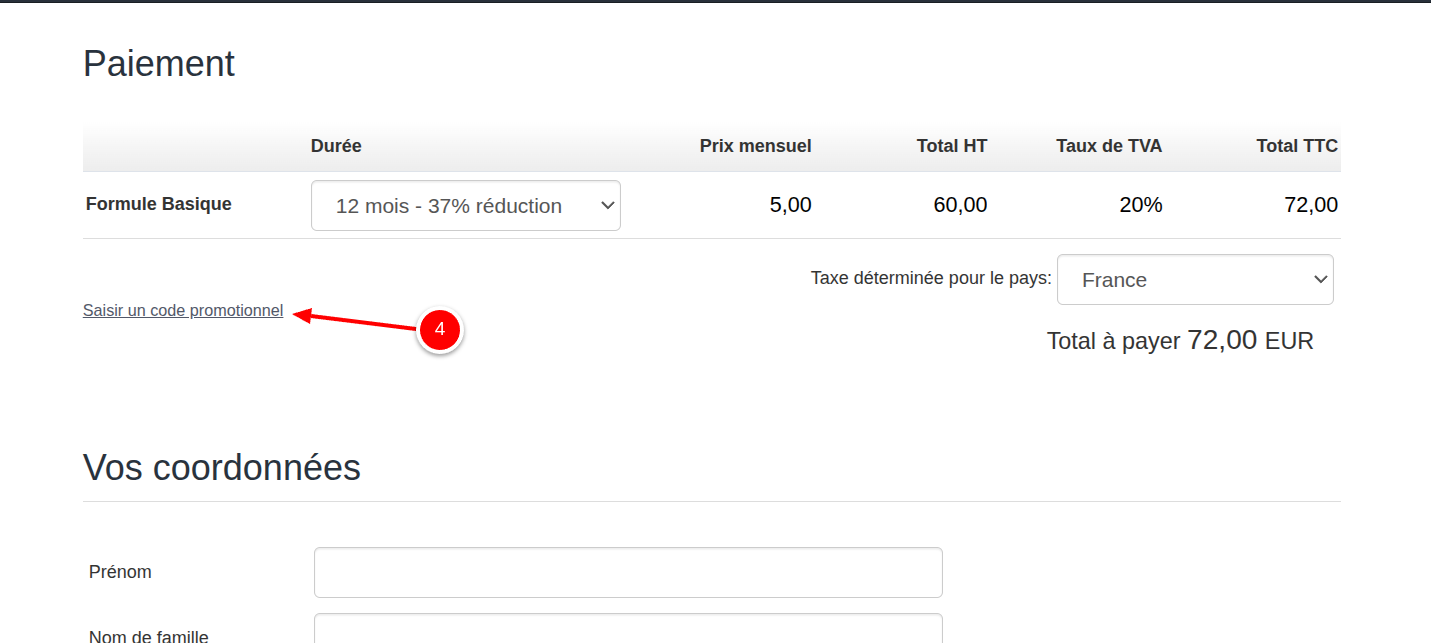
Click “Saisir un code promotionnel”
-
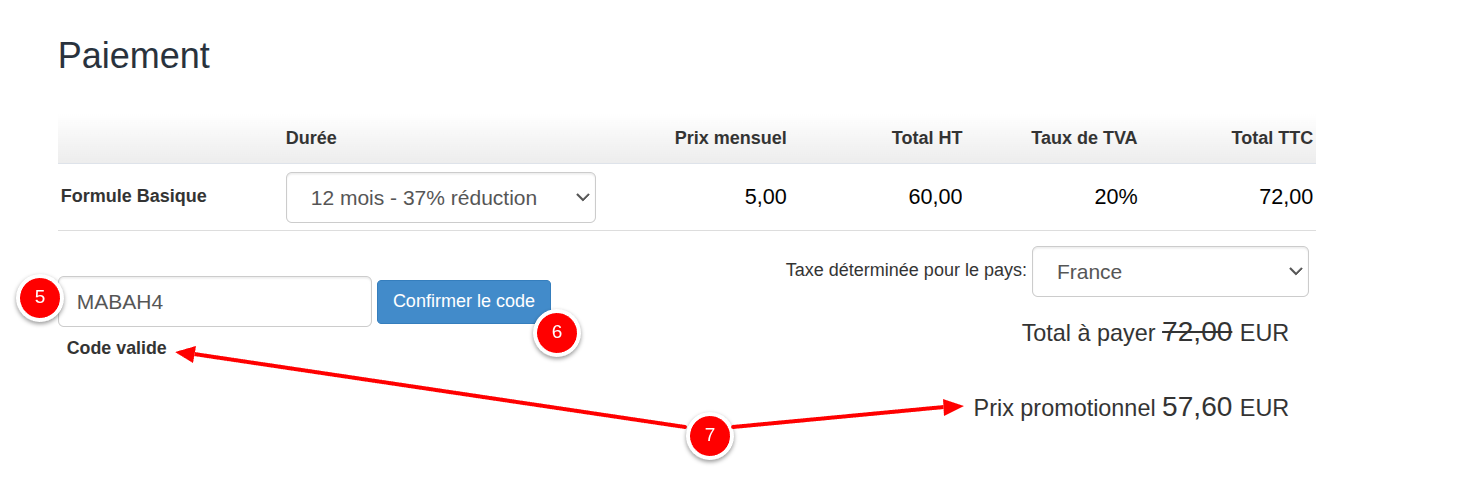
Enter our promotional code, which is as follows (all capital letters): MABAH4.
-
Click “Valider.”
-
Please verify that the promo code has been applied.
-
Enter your “Coordonnées” and click “Procéder au paiement.”
You received a 20% discount on your first payment!